

AdGuard Home vs Pi-hole: Which DNS Filter, and How to Run Either
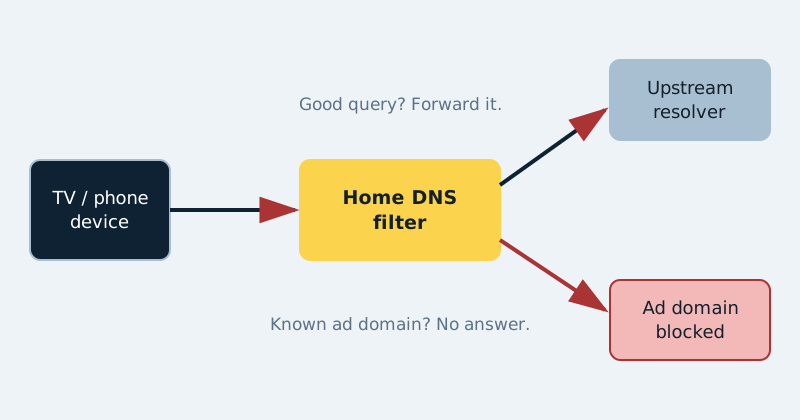
Every device in your home — phones, TVs, the smart fridge you did not ask for — constantly asks DNS servers "where is this address?" A DNS filter answers those questions selectively: real sites resolve normally, while known ad, tracker, and malware domains get no answer at all, so the ads never load. AdGuard Home and Pi-hole are the two established open-source ways to do this for a whole network at once. They are more alike than their fan bases admit, but their differences are exactly the ones that decide which you will enjoy running.
Published Nov 17, 2026 · Last updated Nov 18, 2026
How DNS filtering works (and what it cannot do)
When a TV app tries to load a tracking domain, your filter checks it against blocklists — large, community-maintained lists of known bad domains — and refuses to resolve the bad ones. Legitimate domains pass through to an upstream resolver of your choice. This blocks a surprising amount of advertising and telemetry, especially on TVs, consoles, and smart devices where you cannot install a browser blocker. It cannot remove ads served from the same domain as the content — in-video ads on major streaming platforms are the famous example — and it is not a security silver bullet. Think of it as excellent hygiene, not armour.
The honest comparison
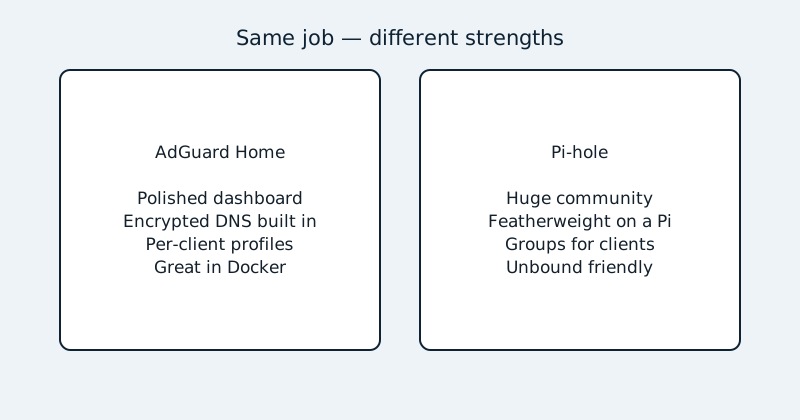
Interface and ease. AdGuard Home has a polished, modern dashboard with per-client settings, parental controls, and safe-search toggles a click away. Pi-hole's interface is plainer but extremely capable, and its v6 release modernised configuration and the API considerably. Beginners usually find AdGuard Home friendlier on day one.
Encrypted DNS. This is AdGuard Home's clearest win: DNS-over-HTTPS, DNS-over-TLS, and DNS-over-QUIC are built in, both for upstream queries and for serving your own devices. Pi-hole traditionally forwards to a plain upstream unless you add a separate tool such as cloudflared or Unbound — many Pi-hole users run Unbound as a recursive resolver, which is a different and equally valid philosophy, but it is an extra piece to install and learn.
One distinction that paragraph glosses over, because it decides which ports you publish later: encrypting the upstream direction — AdGuard Home asking its resolver over DoH or DoT so your ISP cannot see the queries — needs no extra published ports, and it is what the setup steps in this guide configure. Serving encrypted DNS to your own devices is the other direction: if you want phones and laptops to query AdGuard Home itself over DNS-over-TLS (port 853) or DNS-over-HTTPS (port 443), you must publish those ports as well and give AdGuard Home a TLS certificate for the name your devices will use. Most home setups only need the first kind.
Per-device rules. Both can apply different filtering to different clients. AdGuard Home makes it a first-class feature (one profile for the kids' tablet, another for your workstation). Pi-hole does it with groups, which are powerful but take a little more thought to set up.
Ecosystem and help. Pi-hole has been around longer, with an enormous community and a guide for every conceivable router. AdGuard Home runs beautifully in Docker on a NAS — a single container with two small volumes — and is the easier guest on a busy home server. Both are free and open source. Honestly: if you want encrypted upstream DNS and per-client controls without extra parts, choose AdGuard Home. If you want the largest community, the lightest footprint on a Raspberry Pi, or the Unbound recursive-resolver route, choose Pi-hole. You will not regret either.
What you need
- An always-on host: a NAS running Docker, a Raspberry Pi, or a mini PC. DNS is infrastructure — when it sleeps, the whole home's internet "breaks".
- A static IP address for that host on your home network.
- Access to your router's settings, to point DHCP clients at the filter.
- A fallback plan: know how to revert the router's DNS setting before you change it, and consider a second filter instance later for redundancy.
Step-by-step: AdGuard Home in Docker
- Give the host a fixed IP address via your router's DHCP reservation.
- Create folders for AdGuard Home's work files and configuration on the NAS, then start the container from the compose example below.
- Open the setup wizard on port 3000, set the admin username and a strong password, and confirm the DNS listening port is 53.
- Choose upstream DNS servers — pick encrypted (DNS-over-HTTPS) upstreams in Settings › DNS settings, and enable DNSSEC if your upstream supports it.
- Enable one or two reputable blocklists to start (the built-in AdGuard DNS filter plus a well-maintained list such as OISD or HaGeZi). More lists is not better; overlapping mega-lists cause breakage.
- Point one device at the filter manually first — set its DNS to the host's IP — and browse for an hour. If your usual sites and apps behave, proceed.
- Now set the filter as the DNS server in your router's DHCP/LAN settings so every device picks it up automatically.
- Never enable AdGuard Home's built-in DHCP server while your router is also serving DHCP. Two DHCP servers on one network is the classic self-inflicted outage — leave DHCP to the router.
- Reboot a couple of devices, confirm they show up in the query log with sensible names, and save a backup of the configuration.
# AdGuard Home on a NAS (Docker Compose)
services:
  adguardhome:
    image: adguard/adguardhome
    container_name: adguardhome
    restart: unless-stopped
    ports:
      - "53:53/tcp"
      - "53:53/udp"     # DNS itself
      - "3000:3000/tcp" # setup wizard (first run only)
      - "80:80/tcp"     # the dashboard, after setup
    volumes:
      - /volume1/docker/adguard/work:/opt/adguardhome/work
      - /volume1/docker/adguard/conf:/opt/adguardhome/conf
Do not be tempted to delete that port 80 line once the wizard is done: port 3000 serves the initial setup wizard, but the normal dashboard runs on port 80 after setup. Publish only 3000 and everything seems fine — until the wizard finishes and the dashboard is no longer reachable at the NAS address. (If port 80 is already taken on your NAS, you can instead change the dashboard port in AdGuard Home's settings file and publish that port; just pick one approach and write it down.)
Watch for the classic NAS gotcha: if the NAS's own DNS service already occupies port 53, the container will fail to start — check the NAS settings for a conflicting service, or use a dedicated IP for the container via a macvlan network.
A related Docker caveat about client identification: with the default bridge networking above, AdGuard Home may see every DNS query as arriving from the Docker host's address rather than from the device that asked — which defeats per-client rules and makes the query log hard to read. Two arrangements preserve real client IPs. Host networking (network_mode: host) is the simple option: the container uses the NAS's own ports directly, so watch for conflicts with services the NAS already runs. A macvlan network gives the container its own LAN address and keeps it separate, at the cost of more setup and the quirk that the NAS itself often cannot reach the container's address without an extra route. If per-device visibility matters to you, choose one of these from the start rather than migrating later. Pi-hole's install differs (a one-line installer on a Pi, or its own Docker image with port 53 and its web port published), but steps 4–9 — upstreams, sensible lists, one test device, then the router — are identical.
Common mistakes and troubleshooting
The whole home lost internet after the switch. The filter is down, mis-addressed, or the router still points at an old IP. Revert the router DNS to your ISP or a public resolver to restore service, then debug calmly. A specific app or site broke. Check the query log for that device, find the blocked domain, and allowlist just that domain — do not disable filtering wholesale. Shopping and banking redirects are the usual casualties of over-aggressive lists. Some devices ignore the filter. Many phones and TVs hard-code their own DNS or prefer IPv6 resolvers; check that your router advertises the filter for IPv6 too, or disable IPv6 DNS on the router if your setup does not cover it. Ads still appear in one app. If the ads come from the same domain as the content, DNS cannot separate them — that is a known limit, not a fault. Slow first loads. Usually an unreachable encrypted upstream; test a plain, fast upstream temporarily to isolate it.
Official documentation and references
- AdGuard Home on GitHub — official repository and wiki
- AdGuard Knowledge Base — AdGuard Home setup and settings
- Pi-hole documentation — installation and configuration reference
- Pi-hole on GitHub — official Docker image documentation
FAQ
Will a DNS filter slow my internet down?
No — done right, it usually feels faster, because ads and trackers never load and answers are cached locally. A DNS lookup takes milliseconds and happens once per domain, not per page element. If browsing feels slower after setup, the cause is almost always a distant or failing upstream resolver, which the troubleshooting section covers.
Can I run the filter just for some devices?
Yes. Instead of changing the router, set the filter's address manually in the DNS settings of only the devices you choose — a common pattern is filtering the TV and smart devices while leaving work laptops on their company DNS. Per-client profiles in AdGuard Home, or groups in Pi-hole, refine this further once the router points everyone at the filter.
What happens when the NAS or Pi goes down?
Every device using it loses name resolution, which looks like "the internet is down". That single point of failure is the honest price of home DNS filtering. Mitigations: run the filter on reliable hardware, put the host on a small UPS if you have one, and — once you are confident — run a second instance on another device and list both in the router, so one can fail without anyone noticing. One qualification on that two-server setup: devices do not treat the first listed DNS server as primary and the second as strict failover — many will happily query either, in any order. So both listed servers must be filters with the same lists and settings, and never list an unrelated public resolver as the "backup": a share of your home's queries will bypass the filter entirely, and the leaks look random because they depend on which server each device happened to ask.