

Paperless-ngx: scan, OCR and find every document you own
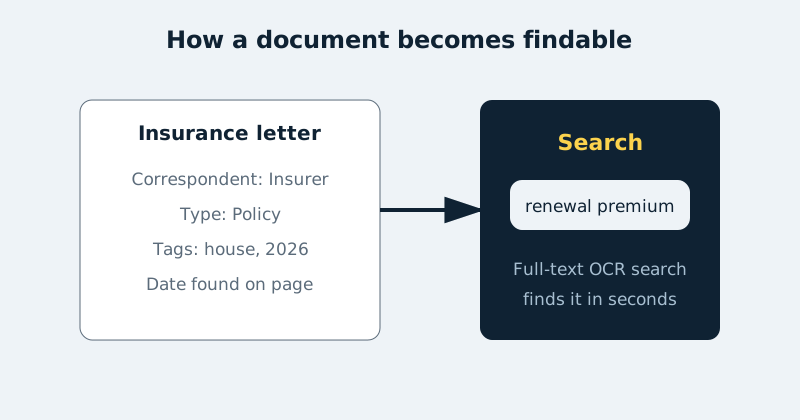
Paperless-ngx turns a shoebox of paper and a downloads folder full of badly named PDFs into one searchable archive. Drop in a scan, and it reads every word with OCR, guesses the date, sender and type, and files it so a search for one word inside the document finds it years later.
Published Nov 17, 2026 · Last updated Nov 18, 2026
Everyone has the same filing problem: the insurance letter is called scan_0042.pdf, the warranty is a photo on a phone, and the tax document is an email attachment you will never find again under pressure. Paperless-ngx fixes the retrieval problem rather than demanding perfect filing discipline from you. You feed it documents through one folder; it does the reading, indexing and suggesting. Your job shrinks to confirming its guesses for a few seconds per document — and after a while, its machine-learning classifier learns from those confirmations and gets most new documents right on its own.
How the consume pipeline works
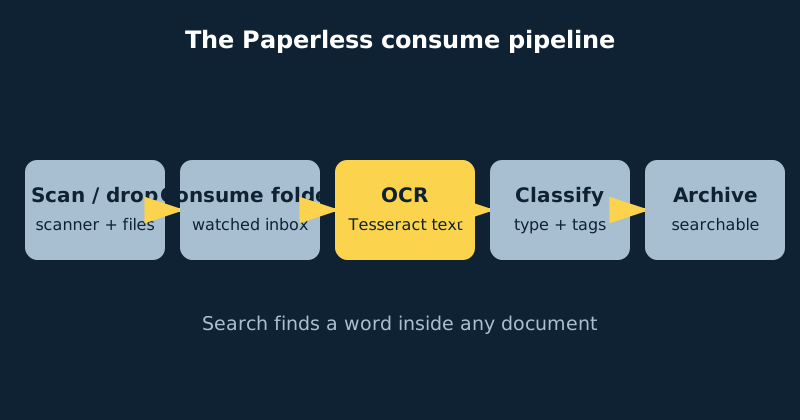
Paperless watches a folder called consume. Anything that lands there — a scan from a scanner’s network folder, a PDF you drag in, a file a sync app drops from your phone — is picked up, processed and then removed from consume, because the document now lives inside Paperless’s own managed storage. Processing means: extract or create the text layer with Tesseract OCR (via OCRmyPDF, which also produces a clean archival PDF), detect the date on the page, and run the classifier to suggest a correspondent (who sent it), a document type (invoice, statement, letter) and tags. Optional helper containers, Apache Tika and Gotenberg, let it also ingest Office documents and email files by converting them to PDF first. The result appears in your inbox view, ready for a quick confirm-and-save.
What you need
- A NAS or server with Docker and Docker Compose. Paperless is not heavy — the webserver, a PostgreSQL database and a Redis-compatible broker — but OCR is CPU work, so a bulk import of thousands of pages will take a while on a small chip. That is a one-time cost.
- A way to scan: a scanner or multifunction printer that can save to a network folder, or simply a phone scanning app that saves PDFs you can drop into consume.
- Storage for the archive on a volume you back up. Documents are small next to video — even a large household archive is usually only a few gigabytes — but they are among the most irreplaceable files you own.
- Your OCR language. The image ships with English, German, French, Italian and Spanish. English is the default (
eng). Other languages can be installed at startup, and you can combine languages for mixed documents. - A backup plan using Paperless’s own document exporter, covered below.
Step-by-step installation
- Create the folders: a project folder containing
consumeandexportfolders, plus persistent volumes (or folders) for data, media and the Postgres database. Note who owns these folders — the container user needs to read and delete files in consume, which is what theUSERMAP_UIDandUSERMAP_GIDsettings are for. - Write the compose file using the example below, based on the project’s official Postgres template. Set a random
PAPERLESS_SECRET_KEYand a strong database password — do not ship the placeholder values. - Set your language and time zone before the first start:
PAPERLESS_OCR_LANGUAGE=engfor English, or combine codes with a plus sign such aseng+deufor English and German. If your language is not one of the five bundled, add it withPAPERLESS_OCR_LANGUAGESso it is installed on first start. Every extra language slows OCR on every page, so list only languages you actually receive documents in. - Start the stack with
docker compose up -dand wait for the webserver logs to show it is listening. First start runs database migrations and can take a few minutes. - Create the administrator account with the management command:
docker compose exec webserver python manage.py createsuperuser, then sign in athttp://your-nas-address:8000. - Test the pipeline with one harmless document. Drop a simple PDF into consume, watch it disappear, and find it in the inbox with searchable text. Search for a word that appears only inside the document — if that finds it, OCR and indexing both work.
- Point your scanner at consume. Configure the scanner or printer to save scans to the consume shared folder, ideally as PDF. If your scanner can only email scans, Paperless can also fetch mail from an IMAP account with mail rules — set that up later, once the folder path works.
- Teach the classifier. For the first few dozen documents, correct the suggested correspondent, type and tags before saving. Create a small, consistent set: correspondents are senders (a bank, an insurer, a utility), types are kinds (statement, invoice, policy), and tags are yours alone (tax-2026, house, car). Consistency is what the classifier learns from; twenty near-duplicate tags teach it nothing.
- Use subfolders as a shortcut if you like: with the consumer’s recursive and subfolder-as-tag settings enabled, dropping a file into
consume/invoices/tags it automatically. This is a good trick for a scanner profile dedicated to one kind of paperwork. - Set up the exporter backup (below) and keep remote access private — use a VPN-style connection or an HTTPS reverse proxy rather than exposing port 8000. This archive will contain your most sensitive documents; treat its login accordingly and enable a strong, unique password.
A concrete Docker Compose example
services:
  broker:
    image: redis:7
    restart: unless-stopped
    volumes:
      - redisdata:/data

  db:
    image: postgres:16
    restart: unless-stopped
    volumes:
      - pgdata:/var/lib/postgresql/data
    environment:
      POSTGRES_DB: paperless
      POSTGRES_USER: paperless
      POSTGRES_PASSWORD: use-a-long-random-password

  webserver:
    image: ghcr.io/paperless-ngx/paperless-ngx:latest
    restart: unless-stopped
    depends_on:
      - db
      - broker
    ports:
      - "8000:8000"
    volumes:
      - data:/usr/src/paperless/data
      - media:/usr/src/paperless/media
      - ./export:/usr/src/paperless/export
      - ./consume:/usr/src/paperless/consume
    environment:
      PAPERLESS_REDIS: redis://broker:6379
      PAPERLESS_DBHOST: db
      PAPERLESS_SECRET_KEY: replace-with-a-long-random-string
      PAPERLESS_OCR_LANGUAGE: eng
      USERMAP_UID: "1000"
      USERMAP_GID: "1000"

volumes:
  data:
  media:
  pgdata:
  redisdata:
Notice what the volumes say about the design: consume and export are plain folders you interact with, while the archive itself lives in managed volumes. Never reorganise files inside the media volume by hand — Paperless tracks originals, archival versions and thumbnails in its database, and manual tidying breaks those links.
Backups with the document exporter
Paperless ships a purpose-built exporter: docker compose exec webserver document_exporter ../export writes every document, its metadata and the information needed to rebuild the archive into the export folder. The matching importer can rebuild a complete working archive from an export on a fresh install, which makes the exporter both your backup and your migration path — with the version caveat below. Run it interactively as shown; for a scheduled job (cron, a NAS task scheduler, a backup script) use the non-interactive form with -T, which skips allocating a terminal that cron cannot provide and avoids TTY-related errors:
docker compose exec -T webserver document_exporter ../exportWhichever form you run, copy the export folder somewhere else afterwards — another drive, another machine, cloud storage. An export that lives only on the same NAS is not disaster recovery: if the NAS dies, the backup dies with it.
One limitation the project’s own documentation is blunt about: an export is tied to the Paperless version that created it. An export made by one version cannot reliably be imported into a different version — the export holds an exact image of the database, and migrations change its layout — so export and restore using compatible versions. Keep a record of the exact Paperless version that produced each export (the exporter writes it into the export’s metadata), and when restoring, install that same version first, import, and only then upgrade. Exports also leave out API tokens, so after a restore you will need to regenerate tokens for any app or script that connects to Paperless. And test the import from time to time on a throwaway install: an emergency restore is the worst moment to discover a version mismatch. A raw copy of the volumes also works as a backup if the database is included and the stack is stopped or consistent, but the exporter is the method the project itself recommends.
Common mistakes and troubleshooting
Files sit in consume and are never picked up
Check permissions first: if the container user cannot read and delete the file, consumption fails and the logs will say so — align USERMAP_UID/USERMAP_GID with the owner of the consume folder. On some network filesystems, change notifications do not arrive; enabling the consumer’s polling setting (PAPERLESS_CONSUMER_POLLING) makes Paperless check the folder on an interval instead.
OCR text is empty or garbled
Usually the wrong language or a poor scan. Confirm PAPERLESS_OCR_LANGUAGE matches the document’s language and that extra languages were actually installed via PAPERLESS_OCR_LANGUAGES. Scan at 300 dpi, in a well-lit, straight capture; no OCR engine rescues a blurred, skewed photo of a crumpled letter. You can re-run OCR on an existing document from the admin tools after fixing the cause.
The classifier suggests nonsense
It has too little — or too inconsistent — training data. It learns from documents you have confirmed, so early suggestions are guesses. Keep correspondent and type lists tidy, merge duplicates, and give it a few dozen consistent examples before judging it. Matching rules you define manually always take priority over its guesses, so pin the important recurring senders with explicit rules.
Dates are wrong on statements
Paperless looks for a plausible date in the text, and documents full of dates (due dates, period ranges, birthdays) can fool it. Correct the date on save — the classifier improves — and, for stubborn correspondents, set a date order or format hint in settings so day/month order is interpreted the way your country writes it.
Official documentation and references
- Paperless-ngx documentation — setup, usage and the full configuration reference
- Paperless-ngx documentation — backups, the document exporter and restoring an archive
- Paperless-ngx on GitHub — source code and release notes
Frequently asked questions
Does Paperless-ngx replace my folder structure?
Inside the archive, yes, deliberately: Paperless stores files in its own managed layout and finds them by search, correspondent, type and tags instead of by folder path. You can configure filename formatting if you want exported files to follow a pattern, but the mental shift — search, don’t browse — is the point of the tool.
Can it handle documents that arrive by email?
Yes. Paperless can connect to an IMAP mailbox and apply mail rules: which sender or subject to consume, whether to take the attachment or the whole email, and which tags to apply on arrival. Many people route bills and statements to a dedicated mailbox address so paperwork imports itself.
What scanner settings work best?
PDF output, 300 dpi, colour or greyscale for anything with stamps or handwriting, saved straight to the consume folder. Higher resolution mostly makes OCR slower, not better, and 200 dpi is noticeably worse on small print. If your scanner offers an OCR option itself, leave it off — Paperless does its own, better-managed pass.