

Duplicati: encrypted backups for your container data
Every self-hosted service on your NAS keeps its important state in a config folder — and most people only think about backing those folders up after a failed update or a dead drive. Duplicati is the friendly way to fix that: scheduled, encrypted, versioned backups of your container data to another drive or to cloud storage, managed from a web interface.
Published Nov 17, 2026 · Last updated Nov 18, 2026
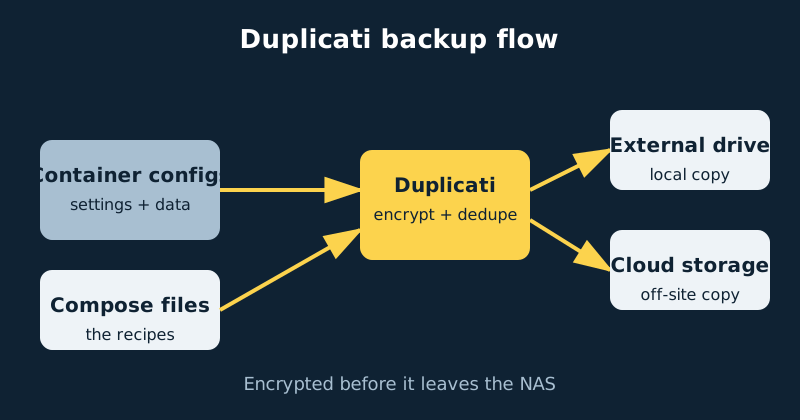
Duplicati works differently from a simple file copy, and the difference is why it suits this job. It splits your data into small blocks, deduplicates them (so ten backups of a mostly unchanged config folder cost little more than one), encrypts everything with a passphrase you choose before it leaves the NAS, and uploads compact archives to the destination. Restore any file, from any backup date, from the same interface. The trade-offs are real too — the backup format is Duplicati’s own, so you need Duplicati to read it — and this guide covers those honestly, including when a command-line tool like restic is the better pick.
What you are backing up, exactly
For Docker services, the valuable data is almost never the container itself — images can be re-downloaded in minutes. It is three things: each service’s /config folder (settings, databases, libraries of metadata), your compose files (the recipe that recreates the stack), and any data folders the service manages, such as documents or photos. Duplicati’s job in this guide is to mount the folder tree containing those things, read-only, and back it up on a schedule. One caution that matters: a live database copied mid-write can restore inconsistently. For any service’s database, the rule is direct — use the application’s own native dump or export, or stop the service while its database is copied. A live file copy of a database is best-effort only, not a guaranteed-restorable backup. The pattern that works is to have database-backed apps dump their own backups into a folder (many do this automatically) and let Duplicati back up the dumps.
What you need
- A NAS running Docker and Docker Compose, with your services’ config and compose folders in a known place — if they are scattered, gather them under one Docker folder first; every guide on this site already follows that pattern.
- A destination that is not the same disk. An external USB drive, a second NAS or a network share for the local copy; ideally also a cloud storage bucket (S3-compatible storage or Backblaze B2 are popular and cheap at this scale) for the off-site copy.
- A passphrase you will never lose, stored in a password manager. Encrypted backups without the passphrase are not backups — they are landfill. More on this below, because it is the single most important setting in the whole guide.
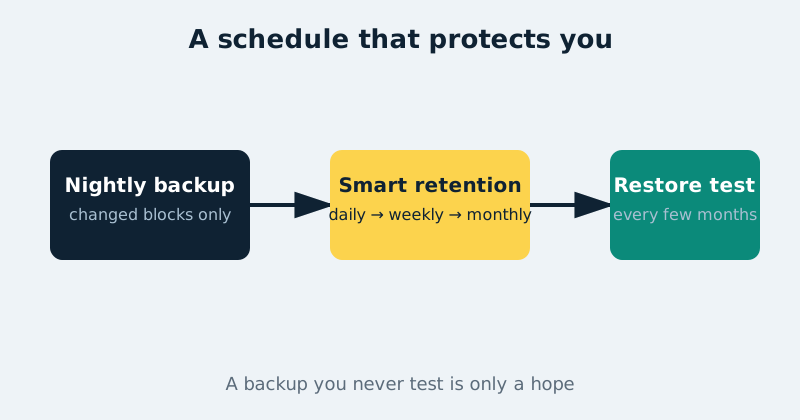
- About an hour for setup and the first backup, plus ten minutes every few months for a restore test.
Step-by-step installation
- Create Duplicati’s own config folder (for example
/volume1/docker/duplicati/config). Note the irony and plan for it: Duplicati’s job definitions live in this folder, so include it in whatever separate snapshot or copy protects the NAS itself. Protect that folder like it matters, because it does: Duplicati’s server database inside it can contain destination credentials, encryption passphrases and other sensitive settings. Restrict the folder with tight NAS permissions — your account only, not a shared folder — and enable Duplicati’s settings-encryption key, which encrypts those sensitive fields inside the database. Store the key in your password manager: if it is lost, the encrypted fields are unrecoverable. And back the config folder up separately and securely — the backup archives at the destination do not, on their own, preserve all the job configuration you would need for a convenient recovery. - Write the compose file from the example below. It mounts your Docker folder read-only at
/source/dockerand a local backups folder at/backups. Add more source mounts if your data lives elsewhere — one per top folder is typical. - Start it with
docker compose up -dand openhttp://your-nas-address:8200. Current versions ask you to set a password for the web interface on first run; do it, and store that password in your password manager too. - Create a backup job. Give it a plain name like “Container configs — nightly”. Set an encryption passphrase when asked — a long, unique one from your password manager, never reused from anything else.
- Choose the destination. For the first job, pick the local folder
/backups(your external drive or second device, mounted there). Use the Test connection button and let Duplicati create its folder. Cloud destinations follow the same pattern later: pick the storage type, enter the bucket and keys, test, save. - Choose the source. Select the folders under
/sourcethat hold real state: each service’s config folder and your compose files. Skip caches, transcoding temp folders and anything the service can re-download — backing up junk slows every run. - Set the schedule and retention. Nightly is right for config folders. Under retention, choose “Smart backup retention” or a simple custom rule such as keeping daily backups for a month and weekly ones for a year. Unlimited retention feels safe and quietly eats the destination.
- Run the first backup manually and watch it complete. It will be the slowest run you ever see; later runs only process changed blocks and are usually done in minutes.
- Do a restore test now, not later. Restore a handful of files from the job into a temporary folder and open them. This proves the passphrase works, the destination is readable, and you know where the restore button lives — three things you do not want to discover during a real incident.
- Add the second, off-site job. Duplicate the job, change the destination to cloud storage, and keep the same sources and passphrase. Now a house fire, theft or ransomware event has to reach two places at once to cost you your data.
A concrete configuration example
This compose file runs Duplicati with its config, a read-only view of your Docker folder as the backup source, and a local destination folder. Adjust paths and time zone to your NAS:
services:
  duplicati:
    image: lscr.io/linuxserver/duplicati:latest
    container_name: duplicati
    restart: unless-stopped
    environment:
      PUID: "1000"
      PGID: "1000"
      TZ: Etc/UTC
    volumes:
      - /volume1/docker/duplicati/config:/config
      - /volume1/docker:/source/docker:ro
      - /volume1/backups:/backups
    ports:
      - "8200:8200"
The :ro on the source mount deserves emphasis: Duplicati only ever needs to read your live data, so give it no ability to write. If anything ever goes wrong inside the backup container, your services’ folders are physically out of its reach. Add further source mounts in the same style — for example /volume1/documents:/source/documents:ro — and they appear inside Duplicati ready to select.
Duplicati or restic?
restic is the other name you will see recommended, and the honest comparison is about interface, not quality. Restic is a command-line tool: faster on very large data sets, scriptable, with snapshots stored in a well-documented format and a strong reputation among people who automate everything. Duplicati wins on approachability — scheduling, retention, destinations and restores are all point-and-click, and you can see at a glance when the last successful run happened. If you live in the terminal, restic (often with a wrapper) may suit you better. If a backup system you actually check beats a theoretically perfect one you avoid opening, choose Duplicati and do not feel you settled.
Common mistakes and troubleshooting
The passphrase is lost
There is no recovery, by design — that is what encryption means. This is why the passphrase goes into a password manager the moment you create it, and why the restore test in step 9 matters: it proves the saved passphrase is the right one while the stakes are zero. Treat the passphrase like the data itself.
“Found remote files that are not recorded” or a repair prompt
Duplicati keeps two databases, and they are not equally precious. The local database for a job describes what is stored at that job’s destination; if it is lost or a run was interrupted, Duplicati may ask to repair or recreate it — and it generally can, rebuilding from the backup data at the destination itself. Recreating is safe but slow, because it re-reads the destination’s index files. The server configuration database is a different matter: it holds your job definitions and sensitive settings, so if it is lost you will have to recreate or import the backup configuration by hand — even though every backup archive at the destination is still intact. That asymmetry is exactly why step 1 protects the config folder so carefully. Do not delete destination files manually to “clean up” — that mismatch is what causes most repair situations.
Backups keep growing faster than expected
Usually a source folder contains something that changes constantly and hugely: a live database file, a media cache, logs, or another backup’s output. Read a run’s summary, find the churn, and exclude caches and temp folders. Also check retention — keeping every daily backup forever is growth by policy, not by accident.
The backup source shows as empty
The mount did not land where you think. Check the compose file’s source path exists on the NAS with that exact name, and remember Duplicati sees the container’s view: your folders appear under /source/…, not under their NAS paths. A docker compose down and up -d after editing mounts is required for changes to take effect.
Official documentation and references
- Duplicati documentation — backup concepts, scheduling and restore
- Duplicati on GitHub — source code and releases
- Duplicati manual on Read the Docs — command line and storage provider reference
Frequently asked questions
Is Duplicati free?
Yes. Duplicati is free and open source for personal use, including encryption and cloud destinations. You pay only for whatever storage you point it at — a USB drive you own, or a few cents a month of object storage at container-config scale.
Where should backups go: local drive or cloud?
Both, if you can. The classic 3-2-1 rule — three copies, two different media, one off-site — maps neatly onto this setup: the live data, a nightly Duplicati job to an external drive, and a second job to encrypted cloud storage. The local copy is the fast restore; the cloud copy is the one that survives the house.
Can Duplicati back up a running database?
It can copy the files, but a database copied mid-transaction may restore to an inconsistent state, so treat a live file copy of a database as best-effort, not a guaranteed-restorable backup. The reliable pattern is to let each application export its own backup on a schedule — most of the services in these guides can — or to stop the service while its database is copied, and have Duplicati protect those exported files along with the configs and compose files. File-level backup of everything else is exactly Duplicati’s strength.