

The *arr stack: Sonarr, Radarr, Prowlarr and qBittorrent in one stack
2026 update — the request layer changed: Overseerr and Jellyseerr merged into Seerr in June 2026, and the old apps are deprecated. New stacks should install Seerr as the front door for this setup, with the single-/data hardlink layout our Seerr guide lays out.
The *arr apps automate the boring parts of a personal media library: tracking which episodes and films you own, watching for better-quality versions of media you already have, renaming files into a consistent scheme, and filing them where your media server expects. Set up once, they turn a chaotic downloads folder into a library that organises itself.
Published Nov 17, 2026 · Last updated Nov 18, 2026
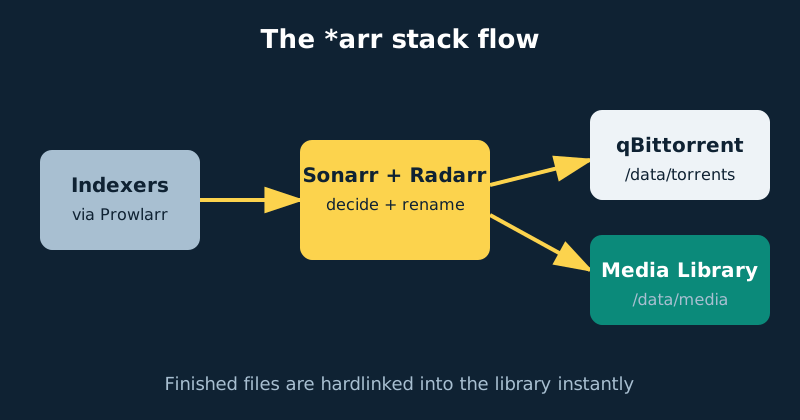
The four pieces divide the work cleanly. Sonarr manages TV series, Radarr does the same job for films, Prowlarr manages your indexers — the searchable catalogues the other two query — in one place and syncs them to both, and qBittorrent is the download client that actually fetches files. What makes the stack pleasant instead of fragile is not any single app; it is the folder layout underneath them. Get the layout right and completed downloads are hardlinked into your library instantly, using no extra disk space on filesystems that support hardlinks. Get it wrong and every import is a slow, space-doubling copy, forever. One bookkeeping caveat: snapshots, quotas and NAS-specific storage behaviour can affect the space your NAS reports, even when the underlying data is stored exactly once. This guide does the layout first, on purpose.
The one idea to understand: a single /data tree
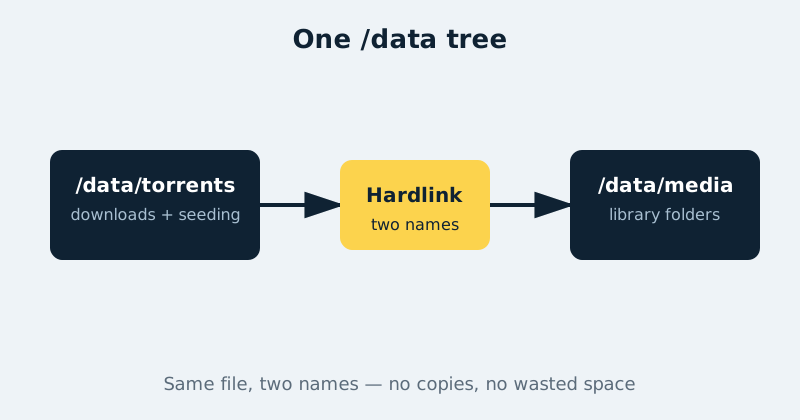
Hardlinks only work within one filesystem, and Docker makes this subtle: two containers can see the same disk as different mounts and still be unable to hardlink between them. The reliable pattern, popularised by the TRaSH Guides, is one shared folder mounted at the same path in every container:
/data
├── torrents          ← qBittorrent's download folders
│   ├── tv
│   └── movies
└── media             ← your library, pointed at Plex or Jellyfin
    ├── tv
    └── movies
Every container in the stack mounts the NAS folder containing this tree at /data — the identical path everywhere. A finished download lands in /data/torrents/tv; Sonarr hardlinks it to /data/media/tv with a clean name in the same instant, so the file appears in your library while the original keeps seeding, and the disk holds one copy, not two. Point your media server at /data/media and never at the torrents folders.
What you need
- A NAS running Docker and Docker Compose, with one media folder that can hold the whole
/datatree on a single volume — splitting downloads and library across volumes silently breaks hardlinks. - A media server such as Plex or Jellyfin pointed at the library folders (both have their own guides on this site), though the stack works fine without one while you test.
- At least one indexer account or source you are entitled to use. Prowlarr supports many public and private catalogues; what you fetch through them is your responsibility — this stack organises media, it does not grant rights to any content.
- Consistent user IDs. All four containers run as the same
PUID/PGIDin the example, which avoids the permission problems that plague mixed stacks. - Optional: a VPN subscription with port forwarding if you intend to route the download client through one — see the note after the installation steps.
Step-by-step installation
- Create the folder tree first. On the NAS, create
data/torrents/tv,data/torrents/movies,data/media/tvanddata/media/movies, plus a config folder per app under your Docker folder. Do this before any container starts. - Write the compose file from the example below. Note that every service mounts the same
/volume1/data:/data— that sameness is the entire trick — while each app’s own settings live in its separate/configfolder. - Start the stack with
docker compose up -d. The four web interfaces live at ports 8989 (Sonarr), 7878 (Radarr), 9696 (Prowlarr) and 8080 (qBittorrent) on your NAS address. - Secure qBittorrent first. Current versions generate a temporary WebUI password and print it in the container log on first run — check
docker logs qbittorrent, sign in, and immediately set your own username and password under Tools › Options › Web UI. In the same settings, set the default save path to/data/torrentsand enable category subfolders. - Configure Prowlarr before the others. Add your indexers in Prowlarr and test each one there. Then, under Settings › Apps, add Sonarr and Radarr using the API keys found in each app’s Settings › General page, with full sync enabled. From now on, indexers added or edited in Prowlarr propagate to both apps automatically.
- Add qBittorrent as the download client in both Sonarr and Radarr (Settings › Download Clients). Use host
qbittorrent— the containers share a Compose network, so service names resolve — port 8080, and the credentials from step 4. Set the category totvin Sonarr andmoviesin Radarr, matching the folders qBittorrent will download into. - Set the root folders. In Sonarr, add root folder
/data/media/tv; in Radarr,/data/media/movies. This is where imported files are filed — and because it sits under the same/datamount as the downloads, imports will be instant hardlinks. - Choose quality profiles conservatively. The defaults are sensible. Decide a realistic ceiling (for most people, 1080p Blu-ray quality for TV, and 1080p or a single 4K profile for films) rather than chasing the largest possible file for everything; upgrades are where disk space goes to die.
- Test the whole loop with one item you own — a film or episode you have the rights to download or a disc rip you are re-acquiring in digital form. Watch it flow: search, download into
/data/torrents, import into/data/media, appear in your media server with a clean name. Verify with your NAS’s file tools that the library copy is a hardlink (same file, two names) rather than a second copy. - Turn on renaming in each app’s Settings › Media Management once the test passes, using the suggested naming patterns, so everything after the test files itself the same tidy way.
A concrete configuration example
One compose file runs the whole stack. Adjust the NAS paths and time zone; keep the /data mount identical in all four services. Note that this is the non-VPN configuration — qBittorrent publishes its WebUI and BitTorrent ports directly, exactly as written. If you plan to route downloads through a VPN, use the variant in the note below the example instead:
services:
  sonarr:
    image: lscr.io/linuxserver/sonarr:latest
    container_name: sonarr
    restart: unless-stopped
    environment:
      PUID: "1000"
      PGID: "1000"
      TZ: Etc/UTC
    volumes:
      - /volume1/docker/sonarr:/config
      - /volume1/data:/data
    ports:
      - "8989:8989"

  radarr:
    image: lscr.io/linuxserver/radarr:latest
    container_name: radarr
    restart: unless-stopped
    environment:
      PUID: "1000"
      PGID: "1000"
      TZ: Etc/UTC
    volumes:
      - /volume1/docker/radarr:/config
      - /volume1/data:/data
    ports:
      - "7878:7878"

  prowlarr:
    image: lscr.io/linuxserver/prowlarr:latest
    container_name: prowlarr
    restart: unless-stopped
    environment:
      PUID: "1000"
      PGID: "1000"
      TZ: Etc/UTC
    volumes:
      - /volume1/docker/prowlarr:/config
      - /volume1/data:/data
    ports:
      - "9696:9696"

  qbittorrent:
    image: lscr.io/linuxserver/qbittorrent:latest
    container_name: qbittorrent
    restart: unless-stopped
    environment:
      PUID: "1000"
      PGID: "1000"
      TZ: Etc/UTC
      WEBUI_PORT: "8080"
    volumes:
      - /volume1/docker/qbittorrent:/config
      - /volume1/data:/data
    ports:
      - "8080:8080"
      - "6881:6881"
      - "6881:6881/udp"
A note on VPNs. Sonarr, Radarr and Prowlarr only make ordinary web requests to indexers and metadata sites, and most people run them on the normal network. The download client is the piece some users prefer to route through a VPN — for privacy from their ISP or because of local network policy. If you do, the clean method is a VPN gateway container such as Gluetun, with qBittorrent sharing its network namespace, so the client simply has no route to the internet except through the tunnel; merely setting a proxy inside qBittorrent is easier to misconfigure. Be aware that seeding well through a VPN needs a provider that supports port forwarding.
In the VPN arrangement, qBittorrent publishes no ports of its own — it borrows Gluetun’s network namespace, and the port mappings move onto the Gluetun service:
services:
  gluetun:
    image: qmcgaw/gluetun:latest
    container_name: gluetun
    cap_add:
      - NET_ADMIN
    devices:
      - /dev/net/tun:/dev/net/tun
    environment:
      VPN_SERVICE_PROVIDER: your_provider
      VPN_TYPE: wireguard
      # your provider credentials here — see the Gluetun guide
    ports:
      - "8080:8080"      # qBittorrent WebUI, published by the gateway
      - "6881:6881"      # BitTorrent traffic
      - "6881:6881/udp"
    restart: unless-stopped

  qbittorrent:
    image: lscr.io/linuxserver/qbittorrent:latest
    container_name: qbittorrent
    network_mode: service:gluetun
    depends_on:
      - gluetun
    environment:
      PUID: "1000"
      PGID: "1000"
      TZ: Etc/UTC
      WEBUI_PORT: "8080"
    volumes:
      - /volume1/docker/qbittorrent:/config
      - /volume1/data:/data
    restart: unless-stopped
The WebUI stays reachable from your LAN at the usual NAS address and port — it is the gateway’s published port now, not qBittorrent’s. One knock-on effect: Sonarr and Radarr should then use host gluetun (port 8080) for the download client, because qBittorrent lives inside Gluetun’s network namespace. Before trusting the setup, verify the kill switch: stop the VPN container (docker stop gluetun) and confirm qBittorrent loses external connectivity completely — no peers, no tracker contact, nothing beyond your LAN. If it can still reach the internet with the tunnel down, the routing is wrong; fix it before downloading anything. For provider setup, port forwarding and health checks, follow the full walkthrough in our Gluetun guide.
Common mistakes and troubleshooting
Imports are slow, or the disk fills twice as fast as expected
Hardlinks are not happening. The usual causes: downloads and library on different NAS volumes, or containers mounting the tree at different paths (for example /downloads in one, /data in another). Make every mount identical — the same host folder at /data in all four containers — and check an imported file’s link count to confirm.
“Download client is unavailable” in Sonarr or Radarr
The test button in the download-client settings tells you which part failed. From inside the stack, the host should be the service name qbittorrent, not the NAS’s LAN IP — containers on a Compose network reach each other by name, and the IP route often breaks after restarts. Wrong credentials after you changed the WebUI password are the other classic cause.
Prowlarr indexers never reach Sonarr or Radarr
The app connection in Prowlarr needs each app’s correct API key and a successful sync — check Prowlarr’s own test button, and confirm the sync level is set to full. Indexers also carry categories: an indexer that only supplies film categories will legitimately appear in Radarr and not in Sonarr.
Sonarr says it cannot import: “path does not exist”
qBittorrent reports the completed path as it sees it; Sonarr must see the same path. With the single /data mount everywhere, reported and actual paths agree. If you ever do split mounts, the fix is a Remote Path Mapping in the download-client settings — but treat needing one as a sign the layout drifted from this guide’s structure.
Will your imports hardlink — or silently copy? Run your volume layout through the hardlink checker: it resolves your mounts the way Sonarr and Radarr see them and hands back the corrected single-/data layout if yours would copy.
Official documentation and references
- Servarr Wiki — Sonarr documentation
- Servarr Wiki — Radarr documentation
- Servarr Wiki — Prowlarr documentation
- qBittorrent on GitHub — official client source and wiki
- Seerr documentation — the merged request manager for the *arr stack
Frequently asked questions
Is the *arr stack legal?
The software is legal, widely used open-source tooling for organising media libraries. What it can lawfully fetch depends on the content and your rights to it — your own disc rips, recordings and freely licensed media are the obvious cases, and you are responsible for respecting copyright in your country for anything else. This guide covers the organising, not sourcing content you have no right to.
Do I need all four apps?
No. Films only? Radarr plus qBittorrent is enough, and Prowlarr becomes optional (you can add indexers directly in Radarr, just with more repetition). Prowlarr earns its place the moment you run two *arr apps, because indexer changes then happen in exactly one place.
Why hardlinks instead of just moving files?
A moved file stops seeding; a copied file doubles the disk usage. A hardlinked file does neither — the download keeps its name and location for seeding while the library gets its cleanly named copy, and both names point at the same data on disk. Delete either name later and the file remains under the other, which also makes library reorganisations unusually forgiving.
Route the download side of this stack through a VPN: Gluetun, with a kill switch.
Want this whole stack as one file? The Compose generator's Media stack preset builds it — VPN routing included.