

Audiobookshelf: your audiobooks and podcasts, hosted at home
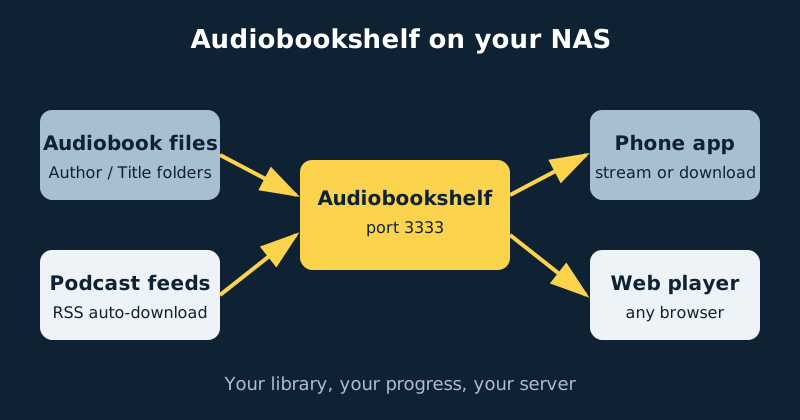
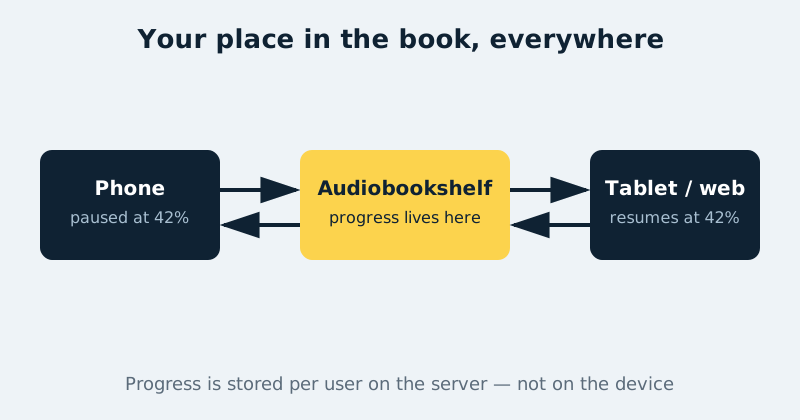
Audiobookshelf turns a folder of audiobook files on your NAS into a proper listening service: a tidy library with covers, descriptions and chapters, a podcast catcher that downloads new episodes for you, apps for your phone, and — the feature that sells it — your place in every book, remembered on the server and synced to whichever device you pick up next.
Published Nov 17, 2026 · Last updated Nov 18, 2026
Commercial audiobook apps are excellent right up until a title leaves the catalogue, a subscription lapses, or you want your partner’s progress kept separate from yours. If your books exist as ordinary files — ripped from CDs you own, bought from DRM-free stores, or downloaded from your audiobook accounts in a portable format — Audiobookshelf gives them the polished app experience without handing the library to anyone. It is free, open source, and one of the easiest containers on this site to live with.
What Audiobookshelf does
At its heart it is a server plus a scanner. You point a library at a folder of audiobooks, and Audiobookshelf reads embedded file metadata and folder names to group files into books, detect series and chapter markers (including proper chapter support in m4b files), and lay everything out as a browsable shelf. Where metadata is thin, its Match tool pulls covers, descriptions, narrators and series information from online book databases, including Audible catalogue data. Playback streams to the official iOS and Android apps or the web player, with variable speed, a sleep timer and bookmarks — and all of it is tracked per user, on the server, so progress is a property of your account, not of one phone. Podcasts are a second library type: subscribe to a show by its RSS feed and Audiobookshelf checks the feed on a schedule and downloads new episodes automatically, ready in the same app as your books.
What you need
- A NAS running Docker and Docker Compose. Audiobookshelf is light — it streams files rather than transcoding them, so almost any NAS that runs Docker is fast enough.
- Your audio files, DRM-free. Audiobookshelf cannot play files locked to another company’s app; see the FAQ for how people usually handle their Audible libraries.
- Two small folders on local storage for
/config(the database: users, libraries, progress) and/metadata(covers and cached artwork). These are small and precious — they are what you back up. - Media folders for the audiobooks and podcasts themselves, organised roughly as Author / Title — the next sections explain why that structure matters.
- The free mobile app on each listener’s phone, or just the web player if you prefer.
Step-by-step installation
- Create the folders. Media folders for audiobooks and podcasts, plus the config and metadata folders on your NAS’s Docker storage.
- Write the compose file from the example below and start it with
docker compose up -d. - Open the web interface at
http://your-nas-address:3333and create the first account. That first account is the root (administrator) account — give it a strong password and keep it for admin tasks. - Create an Audiobooks library pointing at the
/audiobooksfolder inside the container, and let the first scan run. Most well-tagged books appear immediately, covers and all. - Fix the mismatches with Match. Open any book that scanned poorly, choose Match, search the metadata providers, and apply the result — cover, description, narrator and series order usually fall into place in one step.
- Tidy the stubborn ones at the source. If a book refuses to identify itself, fix its folder names to the Author / Title structure described below and rescan, rather than fighting the matcher book by book.
- Create a normal account for each listener in the household. Progress, bookmarks and shelves are per user; sharing one login means sharing one “where was I” across the whole family.
- Install the mobile app, sign in with your server address and your own account, and download a book for offline listening.
- Test the sync. Start a book in the web player, listen for a minute, pause, then open the app on your phone. You will be offered your exact place. That moment is the entire point of the project.
- Add a Podcasts library pointing at
/podcasts, add a show by pasting its RSS feed URL, enable automatic downloads, and set a sensible limit on how many episodes to keep per show. - Back up
/configand/metadataon your normal NAS backup schedule. The audio files can be re-ripped or re-downloaded; your family’s listening progress cannot. One decision to make consciously: downloaded podcast episodes live in the/podcastsfolder, which a/config-and-/metadatabackup does not cover. Include the podcast downloads folder in the backup if those episodes must be preserved — otherwise, accept that after a restore they would need to be downloaded again. Either way, listening progress and user data remain the backup priority.
A concrete configuration example
services:
  audiobookshelf:
    image: ghcr.io/advplyr/audiobookshelf:latest
    container_name: audiobookshelf
    environment:
      - TZ=Etc/UTC
    volumes:
      - /volume1/audiobooks:/audiobooks
      - /volume1/podcasts:/podcasts
      - /volume1/docker/audiobookshelf/config:/config
      - /volume1/docker/audiobookshelf/metadata:/metadata
    ports:
      - "3333:3333"
    restart: unless-stopped
Four mounts, four jobs: the two media folders hold the actual audio, while /config and /metadata hold everything Audiobookshelf knows — accounts, libraries, progress, covers. Keep those two on the NAS’s local Docker storage rather than a network share, and note that the podcasts folder must stay writable, because that is where new episodes land. The web interface and apps all talk to port 3333.
Getting the library structure right
The scanner is good, but it is not psychic, and the single biggest factor in a clean library is folder structure. The layout that scans perfectly is Audiobooks / Author Name / Book Title /, containing either one audio file (a single m4b is ideal) or the numbered parts of a multi-file book. Series fit naturally as Author Name / Series Name / Book Title /. Three rules cover almost every scanning problem. First, one book per folder: a folder containing three books becomes one confused item, and hundreds of loose files in the library root become an afternoon of manual fixing. Second, embedded metadata wins: a well-tagged m4b — title, author, narrator, year, cover art — scans correctly almost regardless of folders, while untagged MP3 rips lean entirely on folder names, so keep those names clean and consistent. Third, use Match for polish, not rescue: with the structure right, matching is a two-click enrichment; with it wrong, fix the folders and rescan instead. Podcasts need none of this — Audiobookshelf manages downloaded episodes inside the podcast library folder itself.
Listening on your phone, away from home
The official apps for iOS and Android stream over your network at home and download books for offline listening away from it — flights, commutes, dog walks. Chapters, bookmarks, the sleep timer and playback speed are all there, and because progress is stored on the server against your account, the web player at your desk, the phone in the car and a tablet at night all agree on where you are in a book. For access away from home, do not port-forward port 3333 to the internet. Reach the server the safe way — a VPN-style connection such as Tailscale, or an HTTPS reverse proxy — and simply give the app that address instead of the home one.
Common mistakes and troubleshooting
Books show up merged, split or coverless
Almost always folder structure or missing tags. One book per Author / Title folder, then rescan, then Match for the cover and description. A “book” that contains three novels’ files will never sort itself out on its own.
Everyone’s listening progress keeps colliding
The household is sharing one account. Progress is deliberately per user — create an account for each listener and keep the root account for administration only.
The podcast folder quietly ate the disk
Automatic downloads with no retention limit will do that over a year of daily shows. Set a maximum number of episodes to keep for each podcast, and glance at the podcast folder’s size when you do your other NAS housekeeping.
The app cannot reach the server away from home
You gave it the home LAN address, which does not exist on mobile data. Connect through your VPN or use your reverse-proxy address in the app’s server setting — and test it on mobile data before a trip, not during one.
An update made the library look empty
Do not rescan from scratch and do not panic. The library lives in the /config and /metadata mounts, not in the container. Check your compose file still points those mounts at the same folders, and the library will reappear exactly as it was.
Official documentation and references
- Audiobookshelf documentation — installation and library guides
- Audiobookshelf guides — scanner, metadata and podcast walkthroughs
- Audiobookshelf on GitHub — source code and releases
Frequently asked questions
Can I listen to my Audible books with it?
Only once they are ordinary, DRM-free files. Audible purchases are locked to Audible’s own apps, so many listeners use a tool such as Libation to download and convert books they own into standard m4b or MP3 files first. From that point on, Audiobookshelf treats them like any other audiobook — which is rather the point of owning them.
Which app should I listen with?
The official Audiobookshelf app for iOS or Android, or the web player in any browser. Because your place in each book is stored on the server, you can start in one and continue in another without hunting for your spot.
How much space do podcasts take?
It depends on the shows and your retention settings. A handful of weekly shows capped at ten episodes each is a few gigabytes; an uncapped daily news podcast is a slow leak. Set the per-show episode limit when you subscribe and it stops being a question.