

Vaultwarden: Self-Host Your Own Password Manager
A password manager is the most sensitive service most of us will ever run — which is exactly why some people would rather it lived on a box in their own home than in someone else's cloud. Vaultwarden makes that realistic: it is a lightweight, open-source reimplementation of the Bitwarden server that works with the official Bitwarden phone apps and browser extensions, runs happily in a single Docker container on a NAS, and gives a small household the features that hosted plans charge for. It also makes you responsible for security and backups. This guide sets it up the careful way.
Published Nov 17, 2026 · Last updated Nov 18, 2026
What Vaultwarden is — and is not
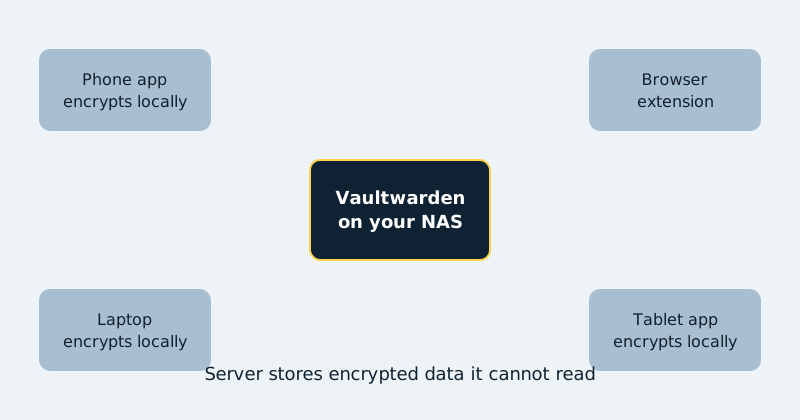
Vaultwarden speaks the Bitwarden protocol, so the genuine Bitwarden clients connect to your server instead of Bitwarden's. Your vault is encrypted on your devices with your master password before anything syncs; the server stores encrypted data it cannot read, just like the hosted service. What changes is custody: no third party holds the encrypted vault, there is no subscription, and features such as organisations, file attachments, and built-in TOTP codes are available to everyone you invite. What does not change is the threat model around your master password — pick a long one, because no support desk can reset it for you. And one honest caveat: Vaultwarden is a community project, not Bitwarden's own server. It is widely used and actively maintained, but if you want the vendor's official self-hosted product with commercial support, Bitwarden sells that too, at considerably higher resource cost.
What you need
- A NAS or small server running Docker, with a folder for Vaultwarden's data.
- A way to reach it with HTTPS. The Bitwarden apps refuse to sync with a self-hosted server over plain HTTP outside a local address — in practice, most people put Vaultwarden behind a reverse proxy with a certificate, or reach it only through Tailscale, which provides encrypted access and trusted certificates for tailnet names.
- An admin plan: Vaultwarden's admin panel is protected by an admin token — a long random secret you generate — and it is where you manage sign-ups and settings.
- A backup routine decided before the first password goes in. The vault folder is small; losing it is not.
Step-by-step setup
- Create the data folder on the NAS (for example docker/vaultwarden) and generate a long random admin token with a password generator. Store it in a password manager — a separate one, or an offline record — outside the vault you are about to create, and never expose it: not in screenshots, not in a public compose repository, not in a support request. Anyone holding that token controls the admin panel.
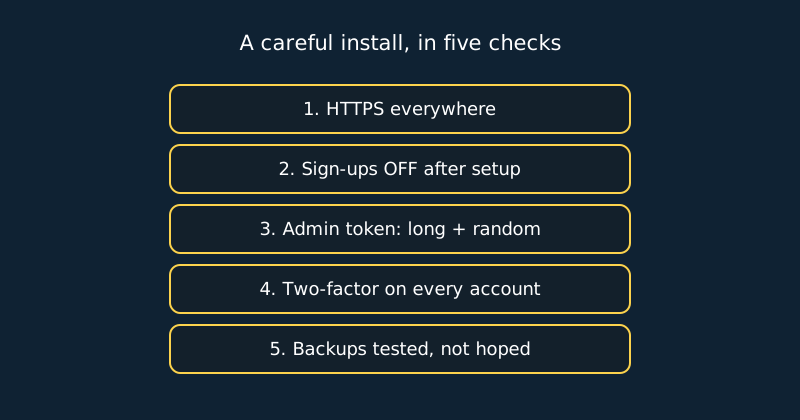
- Start the container using the compose example below, with sign-ups temporarily allowed so you can create the first account. While sign-ups are open, keep the instance reachable only on your home LAN or through Tailscale — never publicly exposed with registration open, not even for the few minutes of setup.
- Reach the web vault through your HTTPS route (proxy hostname or Tailscale name), and create your account with a unique email address and a long master password — a five-word passphrase is a good target.
- Immediately set up two-factor authentication for your account inside the web vault, and save the recovery code somewhere offline.
- Create accounts for household members, or invite them, and then close the door: set SIGNUPS_ALLOWED=false in the container environment (or restrict sign-ups to your email domain in the admin panel), and restart the container.
- Open the admin panel at /admin using the admin token, review the settings, and disable any features your household does not use.
- On each phone and browser, install the official Bitwarden app, choose the self-hosted server option on the login screen, enter your server's URL, and sign in. Confirm a test item syncs between two devices.
- Add the Vaultwarden data folder to your NAS backup job, and test restoring the folder to a spare location once — an untested backup is a hope, not a backup.
- Write down, on paper kept somewhere sensible, the server address, where backups live, and how a family member regains access if the NAS dies. Unromantic, essential.
# Vaultwarden — Docker Compose
services:
  vaultwarden:
    image: vaultwarden/server:1.37.5
    container_name: vaultwarden
    restart: unless-stopped
    environment:
      DOMAIN: "https://vault.example.com"
      SIGNUPS_ALLOWED: "false"   # set "true" only for first setup
      ADMIN_TOKEN: "replace-with-a-long-random-token"
    volumes:
      - /volume1/docker/vaultwarden:/data
    ports:
      - "8081:80"   # reach via reverse proxy or Tailscale
Two things in that example deserve emphasis. First, the image tag is pinned to a specific release — 1.37.5, the current release when this guide was last updated; check Vaultwarden's GitHub releases page for the newest — rather than floating on latest. A password manager is the last service that should ever upgrade itself unreviewed: read the release notes, back up the data folder, then change the tag deliberately. Second, port 8081 is an internal backend port, not a public doorway. Publishing it does not provide HTTPS, and it must never be forwarded from your router to the internet. Clients should reach Vaultwarden through a reverse proxy that adds HTTPS, or privately over Tailscale or a VPN — and your NAS firewall should restrict port 8081 to the proxy and your LAN.
The DOMAIN value must match the exact HTTPS address your apps use, or features such as WebAuthn passkeys and invitation links break. If you serve Vaultwarden only inside a tailnet, use its full tailnet HTTPS name there instead.
Daily use and household sharing
Day to day, self-hosting is invisible: autofill works the same, new logins sync in seconds, and the apps cache an encrypted copy so you can still read passwords when the NAS is unreachable — you just cannot sync changes until it returns. For sharing, create an organisation inside Vaultwarden and collections for shared items (streaming logins, the Wi-Fi password, household accounts) so a password changed once updates for everyone, while personal vaults stay personal. Resist the urge to run Vaultwarden for friends and extended family beyond your household: the moment other people's banking passwords depend on your NAS uptime and patching, you have become an unpaid IT department with real liability. Keep the circle small.
Common mistakes and troubleshooting
Leaving sign-ups open. The most serious mistake. A publicly reachable Vaultwarden with open registration will be found and filled with strangers' accounts. Close sign-ups after setup and verify from a private browser window that registration is refused. The app will not connect. Almost always HTTPS: the server URL must be a valid HTTPS address the phone trusts. Self-signed certificates cause endless grief — use a real certificate via a proxy or Tailscale's HTTPS names. Notifications and sync feel delayed. Vaultwarden uses websockets for live sync; behind a reverse proxy, make sure websocket forwarding is enabled for the host, or clients will still sync, just on a slower schedule. Forgotten master password. There is no recovery — by design. The vault must be deleted and rebuilt from your other records, which is why the passphrase and an exported, encrypted backup kept offline matter. Container updated and will not start. Check the log for a database migration message, restore the data folder from the pre-update backup, and pin to the previous image tag while you read the release notes.
Official documentation and references
- Vaultwarden on GitHub — the server implementation and releases
- Vaultwarden Wiki — configuration, HTTPS setup and the admin panel
- Vaultwarden Wiki — backing up your vault data
FAQ
Is Vaultwarden as secure as hosted Bitwarden?
The encryption model is the same — vaults are encrypted on your devices and the server cannot read them. But be careful about what that does and does not prove. Vaultwarden is a community implementation of the Bitwarden protocol, not Bitwarden's own server: it has not been through the same security review, and it comes without the official service's operational controls, monitoring, or support. Bitwarden patches, monitors, and backs up its service professionally; self-hosting transfers all of that security and availability responsibility to you. Follow this guide's checklist and a home instance can be a reasonable choice — but you are now the security team, and if that is more responsibility than you want, the hosted service is safer.
What happens to my passwords if the NAS dies?
Your phones and browsers keep a cached encrypted copy, so you can still view and use existing passwords. Restore the Vaultwarden data folder from backup onto any replacement host, point the same address at it, and every client reconnects as if nothing happened. Without a backup, the cached copies are all that remains — export from a still-signed-in client before wiping anything.
Can I migrate from hosted Bitwarden to Vaultwarden?
Yes, cleanly. Export your vault from the hosted account as an encrypted (password-protected) export, create your Vaultwarden account, and import the file in the web vault. Organisations and shared collections need to be recreated and re-shared, so move personal items first, confirm everything arrived, and only then close the hosted account — after a week of parallel running, not before.