

Syncthing: sync folders between your computers and NAS, with no cloud
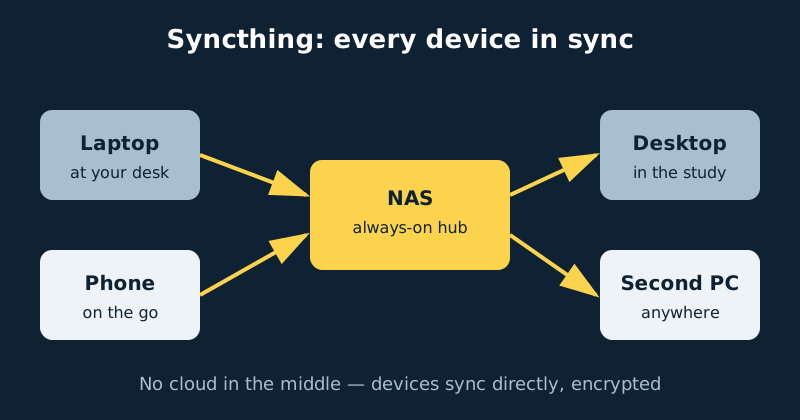
Syncthing keeps a folder identical on every machine you own — laptop, desktop and NAS — by syncing directly between your devices over encrypted connections. There is no cloud account, no quota and no monthly fee, and because your NAS is always on, it becomes the hub that keeps everything in step even while your laptop is asleep.
Published Nov 17, 2026 · Last updated Nov 18, 2026
Cloud sync services solve this problem by renting you space on someone else’s computer and charging by the gigabyte. Syncthing solves the narrower problem — the same files, on all my machines — without the middleman: your files are never stored anywhere you did not put them, the only capacity limit is your own disks, and it works on your home network even with the internet down. This guide installs it in Docker on a NAS and covers the two settings that make it safe: folder types and versioning.
How Syncthing works
Every Syncthing installation generates a device ID: a long code derived from its own cryptographic certificate. That ID is an identity, not an account — there is no sign-up and no central server that knows your name. Devices only talk to devices you have explicitly paired, and you share specific folders with specific devices — never your whole disk by default.
When a file changes, Syncthing notices via a filesystem watcher, splits the file into blocks, and transfers only the blocks that actually changed — so a small edit never re-uploads a whole file — all over TLS-encrypted connections. Devices find each other automatically on your home network; across the internet, public discovery servers help them connect (learning an IP address and a device ID, never file data), and if a direct connection is impossible, community relays pass the encrypted traffic through, unable to read it. There is no master copy — every paired device holds a complete copy — which is why the always-on NAS matters: it is always awake to receive changes and hand them to the next machine that wakes up.
What you need
- A NAS running Docker and Docker Compose, with enough space for the folders you plan to sync — each one exists in full on the NAS.
- Syncthing on each computer too. Native apps exist for Windows, macOS and Linux, and they all pair with the Docker version on the NAS.
- Your NAS user and group IDs (often 1000/1000) so files the container writes are owned by you, not root.
- A short list of folders worth syncing — documents, a photo inbox, work projects. Sync whole working folders, not entire drives.
- Real backups somewhere. Sync is not backup (see the versioning section below).
Step-by-step installation
- Create the folders. Make a config folder for Syncthing itself, and decide where each synced folder will live on the NAS — a documents folder, a photos folder. You will mount each into the container.
- Write the compose file from the example below, with your own
PUID/PGIDand volume paths. - Start the container with
docker compose up -dand give it a few seconds to initialise. - Open the web interface at
http://your-nas-address:8384and immediately set a GUI username and password under Settings › General. The interface starts with no password, and it controls your sync — protect it. - Find the NAS device ID under Actions › Show ID (also shown as a QR code for pairing phones).
- Install Syncthing on your first computer, open its interface, and choose Add Remote Device. Paste in the NAS device ID and name it.
- Accept the pairing on the NAS when the request appears there. Pairing is always mutual — no device can be added silently from one side.
- Share a small test folder. On the computer, add a folder and tick the NAS under Sharing; accept it on the NAS and set its local path. Drop a file in, watch it appear on the NAS, edit it, watch the edit come back.
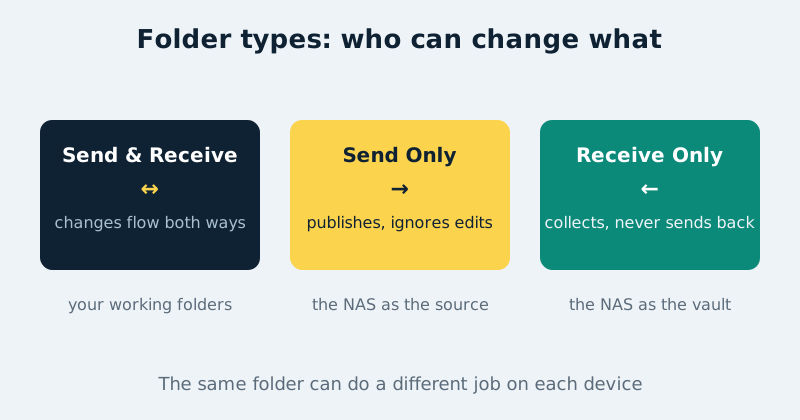
- Set each folder’s type deliberately on each device (see the folder types diagram below) instead of leaving everything on the default.
- Turn on versioning for the NAS copies of each folder, and add a
.stignorefile in the folder root for junk that should never sync (.DS_Store, temp files,node_modules). - Repeat pairing for your other computers. The NAS hub alone is enough for most homes; direct computer-to-computer sharing is optional.
A concrete configuration example
This uses the LinuxServer.io Syncthing image, the common choice on NAS platforms because it handles file ownership cleanly via PUID and PGID:
services:
  syncthing:
    image: lscr.io/linuxserver/syncthing:latest
    container_name: syncthing
    environment:
      - PUID=1000
      - PGID=1000
      - TZ=Etc/UTC
    volumes:
      - /volume1/docker/syncthing/config:/config
      - /volume1/documents:/data/documents
      - /volume1/photos:/data/photos
    ports:
      - "8384:8384"
      - "22000:22000/tcp"
      - "22000:22000/udp"
      - "21027:21027/udp"
    restart: unless-stopped
Port 8384 is the web interface. Port 22000 carries the sync traffic itself (TCP, plus UDP for the faster QUIC transport), and 21027/UDP is the local discovery broadcast. Forwarding port 22000 enables direct connections from outside your home, but it is optional — discovery and relays handle most cases. Never forward 8384: the admin interface belongs on your LAN or behind a VPN, full stop.
Folder types: who is allowed to change what
Each folder, on each device, has a type. Send & Receive is the default two-way behaviour and is right for folders you actively work in. Send Only means this device publishes its version and ignores changes made elsewhere — good for a NAS folder that distributes a family archive to computers set to Receive Only. Receive Only means this device collects changes but never sends its own local edits or deletions back — the right setting on the NAS for “gather from my laptop” folders, because NAS-side tidying can then never delete your computer’s originals. A fourth type, Receive Encrypted, stores only encrypted data on a device you do not fully trust. Choosing types deliberately is the difference between a sync system and a deletion-propagation system.
Versioning: a recovery layer
Plain sync propagates everything, including the things you regret — deletions and ransomware-encrypted folders reach every device within seconds. Versioning on the NAS copies is the safety net. On the NAS, each folder’s settings offer Trash Can versioning (deleted files kept aside for a set number of days), Simple versioning (a fixed number of older versions of changed files), or Staggered versioning, which keeps versions at thinning intervals — recent ones close together, older ones spread out — up to a maximum age. Staggered on the NAS hub is the best default: the NAS has the space, and it turns “I deleted that everywhere” into a two-minute recovery. It is still not a true backup — it lives on the same box — so keep your normal NAS backups too.
Know the limit: Syncthing versioning protects against changes received from other devices. It does not protect against every change made directly on the NAS itself — versioning archives what arrives from elsewhere, not what is edited or deleted locally on the NAS. Keep a separate backup of the NAS data, and test recovery.
Syncthing or Nextcloud?
They overlap in one feature — files — and differ in everything else. Nextcloud is a server-centric cloud suite: a web file manager, public sharing links, calendar, contacts and office editing, backed by a database that needs real administration. It is the right tool when you must hand files, through a link, to people who will never install your software. Syncthing does exactly one thing — keep folders identical between your own devices — peer-to-peer, with no database, no public links and almost no maintenance. If the job is “my documents, photos and projects, the same on every machine I own,” Syncthing is simpler, faster and more private.
Common mistakes and troubleshooting
A folder sits at “Out of Sync” for ages after setup
The first sync of a large folder involves scanning and hashing every file, which takes real time on a NAS CPU. Check the progress numbers are moving and let it finish. Hence the small test folder in the steps: prove the plumbing on ten files, not ten thousand.
Files with “sync-conflict” in the name keep appearing
The same file was edited on two devices while they could not reach each other, and Syncthing — correctly — kept both versions rather than guessing which edit wins. Merge them manually and delete the conflict copy. Conflicts get rarer when the always-on NAS hub is reachable, because devices rarely diverge for long.
Synced files arrive owned by the wrong user
Your PUID/PGID do not match the account that owns those folders on the NAS. Align them, restart the container, and new files will land with sensible ownership.
The web interface is reachable from the internet
Someone forwarded port 8384 — undo it. Sync traffic is encrypted and safe via discovery and relays with no forwarding at all; the admin interface belongs on your LAN or behind a VPN only.
One folder keeps the NAS CPU busy all day
It is full of constantly changing files — virtual machine images, live databases, build output. Syncthing re-hashes churn forever. Exclude those paths with .stignore — some folders are backup territory, not sync territory.
Official documentation and references
- Syncthing documentation — concepts, configuration and usage
- Syncthing documentation — file versioning behaviour and its limits
- Syncthing on GitHub — source code and releases
Frequently asked questions
Is Syncthing a backup?
No — it is synchronisation: delete a file in one place and the deletion is faithfully copied everywhere. Versioning softens this and is well worth enabling, but a backup is a separate copy sync cannot touch. Keep both.
Does my data pass through Syncthing’s servers?
No. Discovery servers only help devices find each other’s addresses; relays, used only when a direct connection fails, carry encrypted traffic they cannot decrypt. File data moves between your devices and nowhere else.
Can I sync with my phone as well?
Yes. On Android the community-maintained Syncthing-Fork carries the project forward, and on iOS third-party clients such as Möbius Sync do the job well. A camera-upload or documents folder on the phone pairs with the NAS exactly like a computer does.