

Watchtower and a sane container update strategy
Out-of-date containers are a security risk; blindly auto-updated containers are an availability risk. Watchtower resolves the tension when you scope it properly: it automatically updates the boring, stateless containers where updates are nearly always safe, tells you what it did, and leaves the important stacks — databases, Home Assistant, your photo library — for a human with a backup and ten minutes.
Published Nov 17, 2026 · Last updated Nov 18, 2026
Maintenance status — read this first. The original Watchtower project (containrrr/watchtower) was archived by its maintainers on 17 December 2025 and is no longer maintained: no bug fixes, no security patches, and its final release, v1.7.1, dates from November 2023. Do not start a new setup on the original image. This guide therefore uses the community fork, nickfedor/watchtower, a drop-in replacement with the same configuration, labels and environment variables. A fork is a trust decision, though: any auto-updater holding the Docker socket can replace any container on the host, so check the fork’s repository activity and release history yourself before giving it that access.
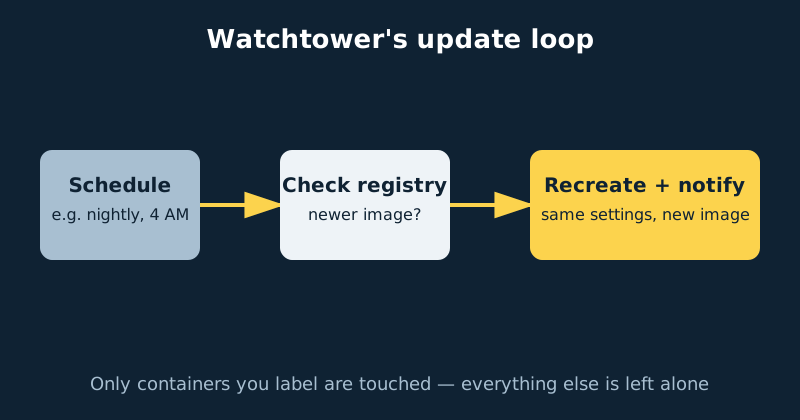
Every container you run is software with a shelf life. Bugs are fixed, features land, and occasionally a genuine security vulnerability is patched — but only for people who actually update. Doing it by hand works until the NAS runs fifteen stacks and updating becomes a monthly chore that quietly stops happening. Watchtower automates the mechanical part: on a schedule, it checks whether the registry has a newer version of each watched container’s image, and if so it pulls it, recreates the container with identical settings, and cleans up. The entire craft is in the word watched. Run it carelessly and one day a database will be upgraded across a major version overnight and refuse to start against its own data. Run it deliberately and updates become background noise. This guide sets up the deliberate version.
Decide your update policy first
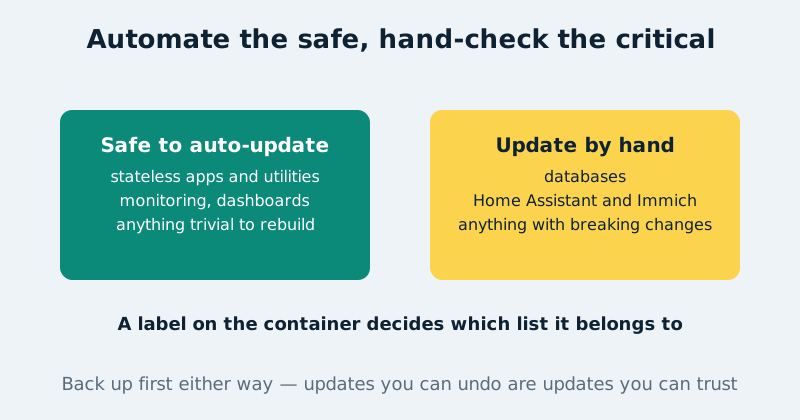
Before installing anything, sort your containers into two lists. Safe to automate: stateless or near-stateless apps whose data is trivial or external — monitoring tools, dashboards, download utilities, small web apps, anything you could delete and rebuild in five minutes without losing anything that matters. These projects also tend to release small, frequent, backwards-compatible updates. Update by hand: anything where the data is the product or upgrades can change behaviour. Databases are the strictest case: a PostgreSQL major-version upgrade cannot read the previous version’s data files, so an unattended jump can leave a stack down and its data stranded until you intervene. Home Assistant ships monthly releases that regularly include breaking changes worth reading about first. Immich and similar fast-moving stacks occasionally require specific upgrade steps between versions. For these, the update itself is easy — the reading and the backup beforehand are the job, and neither can be automated away.
What you need
- A NAS running Docker, with your stacks defined in compose files so every container’s settings are reproducible.
- Your two lists from the section above — which containers may auto-update, and which must not.
- A notification destination you actually read: an email address, or a chat/webhook service. Silent automation is how small breakages become week-old surprises.
- Working backups of your important stacks before any of this starts. Automation without backups is just faster failure.
Step-by-step installation
- Create the stack folder (
watchtower) with the compose file below, and start it withdocker compose up -d. The crucial line isWATCHTOWER_LABEL_ENABLE=true: with it set, Watchtower ignores every container on the system except those explicitly labelled for updates. Without it, Watchtower watches everything — do not skip this. - Label one low-risk container. In that app’s own compose file, add the label shown in the configuration section, then recreate it with
docker compose up -din its folder. Pick something genuinely unimportant for this first run. - Watch a cycle happen. Check Watchtower’s logs (
docker compose logs -fin its folder, or its Logs page in Portainer). On each scheduled run it reports which containers it checked, whether newer images exist, and what it updated. Confirm the labelled container is checked and everything else is ignored. - Set the schedule. The example runs at 4 AM daily. Pick a time when a brief restart of a utility container inconveniences nobody, and when you are likely to see the notification the same day if something goes wrong.
- Turn on notifications and trigger a test. Watchtower sends notifications through Shoutrrr, which supports email, Discord, Slack, Telegram, generic webhooks and dozens more via a URL. Set the two notification environment variables, restart Watchtower, and confirm a message arrives — an untested notification is decoration.
- Expand the labelled set gradually. Add your other low-risk containers one stack at a time over a few days. Resist labelling anything from the manual list in a moment of tidiness; the boundary is the entire strategy.
A concrete configuration example
Watchtower, scoped by labels, with cleanup and notifications enabled:
services:
  watchtower:
    image: nickfedor/watchtower:latest
    container_name: watchtower
    restart: unless-stopped
    environment:
      - TZ=Etc/UTC
      - WATCHTOWER_LABEL_ENABLE=true
      - WATCHTOWER_CLEANUP=true
      - WATCHTOWER_SCHEDULE=0 0 4 * * *
      - WATCHTOWER_NOTIFICATIONS=shoutrrr
      - WATCHTOWER_NOTIFICATION_URL=generic://your-webhook-or-service-url-here
    volumes:
      - /var/run/docker.sock:/var/run/docker.sock
And in each container that may auto-update, add this label to its service definition:
services:
  uptime-kuma:
    image: louislam/uptime-kuma:1
    labels:
      - "com.centurylinklabs.watchtower.enable=true"
WATCHTOWER_CLEANUP removes the old image after a successful update, which matters more than it sounds — without it, every update leaves a full old image behind and the disk fills silently. The schedule uses a six-field cron expression (seconds first), so 0 0 4 * * * means 4:00 AM daily. A note on versions: older copies of this guide used containrrr/watchtower, the original image. That project was archived on 17 December 2025, frozen at v1.7.1, and receives no fixes of any kind — treat it as legacy. If you still run it, moving to the fork is a one-line image change, because nickfedor/watchtower accepts exactly the same configuration, labels and environment variables. The fork is community-maintained rather than official, so verify it the way you should verify anything you are handing the Docker socket: read its repository, confirm releases are current, and only then let it update anything.
The manual half of the routine
Automation covers the easy containers; the important stacks still need a rhythm. Once a month is a good cadence: read the release notes or breaking-changes list, confirm the stack’s backup is current (for databases, that means a real dump, not just the data folder), update one stack, and check it works before moving to the next. In a compose-based setup this is minutes per stack — pull, recreate, glance at the logs — and because you pinned or noted versions, a bad release is reversed by changing the tag back. Tools like Portainer make the same routine point-and-click. The point of the split is not that manual updates are better; it is that attention is a limited resource, and this spends it exactly where a bad update can hurt.
Common mistakes and troubleshooting
Watchtower updated a container it should not have
WATCHTOWER_LABEL_ENABLE is missing or set to false, which makes Watchtower watch everything by default. Add the setting, recreate Watchtower, and audit your labels. If a database was caught in a major-version jump, restore from the pre-update backup or pin the previous image version — this is the failure the whole policy exists to prevent.
Nothing ever updates
Usually the label is on Watchtower’s own compose service instead of the target container’s, or the target was never recreated after labelling, so the running container does not carry the label yet. Watchtower’s logs say how many containers it is watching; that number should match your labelled set.
The disk keeps filling up
Cleanup is off, or old images from manual updates are accumulating. Enable WATCHTOWER_CLEANUP, and periodically run docker image prune for the rest. Check with docker system df to see what is actually consuming space before deleting anything.
No notifications arrive
Test the Shoutrrr URL format against the Shoutrrr documentation for your service — each service has its own URL shape, and a malformed one fails silently. Also confirm notifications are not set to report only on errors if you were expecting a message for every successful update.
Official documentation and references
- Watchtower (maintained fork) on GitHub — source code and releases
- Watchtower documentation — arguments, notifications and lifecycle hooks
- Watchtower (original project) — legacy documentation for the archived containrrr image
Frequently asked questions
Can Watchtower update itself?
Yes — it watches its own container like any other, and updating itself is one of its safest tricks since it holds no data. If it ever fails to come back, recreating it from its compose file restores it in a minute, which is another argument for keeping that file backed up.
Is monitor-only mode useful?
Very, as a halfway step. With WATCHTOWER_MONITOR_ONLY=true, Watchtower checks and notifies but changes nothing. Run it for a few weeks and you get a clear picture of how often your containers actually change — and a nudge list for manual updates — before you trust it to act on the low-risk set.
Why not just auto-update everything and restore from backup if it breaks?
Because the failures that matter are not always loud. A database that will not start is obvious; an automation platform whose behaviour subtly changed, or a photo stack mid-migration, can corrupt quietly for days before anyone notices — by which time the good backup has rotated away. Preventing the bad update is cheaper than detecting it.