

Dozzle and Scrutiny: watch your container logs and your hard drives
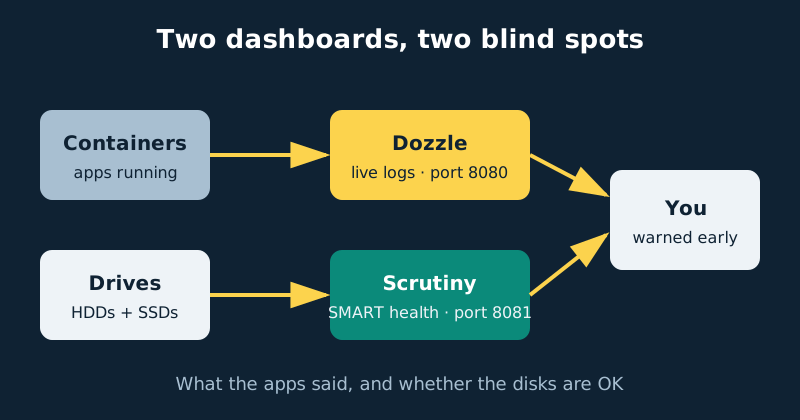
Two small containers close the two biggest blind spots on a Docker NAS. Dozzle puts every container’s live logs in a browser tab — no more SSH and docker logs gymnastics at midnight. Scrutiny watches the SMART health of every hard drive and SSD, and warns you while a dying disk is still an errand, not a disaster.
Published Nov 17, 2026
When a self-hosted service misbehaves, there are really only two questions: what is the software saying, and is the hardware underneath it okay? Most home setups can answer neither without an SSH session. This guide installs the two tools that answer both at a glance — Dozzle for logs, Scrutiny for drive health — in a single compose file, and finishes with the part nobody writes down: what to do on the day Scrutiny tells you a drive is failing.
Two tools, two different blind spots
Dozzle is a tiny web interface that streams logs from the Docker socket in real time: every container on the host, searchable and filterable as the lines arrive, with split views for watching two containers side by side. It stores nothing — it is a window, not a database — which is why it weighs almost nothing. Its agent mode runs a lightweight agent on other Docker hosts, so one Dozzle page shows every machine’s logs.
Scrutiny is a SMART monitoring dashboard, and it has three pieces worth understanding. The collector runs the standard smartctl tool against each drive on a schedule and gathers its self-reported health data. The hub — a web/API server backed by an InfluxDB database — receives those results and stores the history. The dashboard grades every drive — passed, or failed by SMART’s own verdict or by Scrutiny’s stricter, research-informed thresholds — and charts attributes like reallocated sectors and temperature over time, so you see trends instead of a snapshot. On a multi-machine setup the collectors are spokes reporting into one central hub; on a single NAS, the all-in-one image runs collector and hub together in one container, which is what this guide uses.
What you need
- A NAS running Docker and Docker Compose, and a list of your drive device names —
/dev/sda,/dev/sdb,/dev/nvme0n1and so on. Your NAS storage screen orlsblkwill tell you. - Two small folders on local storage for Scrutiny’s config and its InfluxDB data. Dozzle needs no storage at all.
- Respect for the Docker socket. Dozzle mounts it to read logs, and socket access is effectively root-level control of the host — fine on your LAN, a terrible thing to expose to the internet.
- A notification target you actually read — email, a chat app, a push service — for Scrutiny’s alerts. A warning nobody sees is just a log entry.
Step-by-step installation
- List your drives and note every device name. Scrutiny can only watch drives you explicitly pass into its container.
- Create the Scrutiny folders: one for config, one for its InfluxDB data, both on local storage.
- Write the combined compose file from the example below — one file, two services — adding one
devices:line per drive. - Start both containers with
docker compose up -d. - Open Dozzle at
http://your-nas-address:8080, click a busy container, and watch its logs stream live. Try the search box. That is genuinely the whole learning curve. - Open Scrutiny at
http://your-nas-address:8081and give the collector a few minutes for its first run. Then confirm every drive appears with the right model, serial and capacity. A missing drive is a missingdevices:line, almost every time. - Read your baseline. Note each drive’s status, temperature and power-on hours while everything is healthy. Knowing what “boring” looks like makes future warnings legible.
- Turn on notifications in Scrutiny’s config file (
scrutiny.yaml, in the config folder you mounted) by adding a notification URL — the example after the compose file shows the shape — then restart Scrutiny and send a test notification. - Optionally, add Dozzle agents on any other Docker hosts you run, so one Dozzle tab covers every machine’s logs.
- Pin both dashboards somewhere visible — your homelab dashboard page — and make a weekly glance a habit.
A concrete configuration example
services:
  dozzle:
    image: amir20/dozzle:latest
    container_name: dozzle
    volumes:
      - /var/run/docker.sock:/var/run/docker.sock
    ports:
      - "8080:8080"
    restart: unless-stopped

  scrutiny:
    image: ghcr.io/analogj/scrutiny:master
    container_name: scrutiny
    cap_add:
      - SYS_RAWIO
      - SYS_ADMIN
    volumes:
      - /run/udev:/run/udev:ro
      - /volume1/docker/scrutiny/config:/opt/scrutiny/config
      - /volume1/docker/scrutiny/influxdb:/opt/scrutiny/influxdb
    devices:
      - /dev/sda
      - /dev/sdb
    ports:
      - "8081:8080"
    restart: unless-stopped
Three details in that file deserve a second look. First, the ports: both projects document 8080 as their default, so Scrutiny’s web interface is published on 8081 here to avoid the clash. Second, the cap_add lines: SYS_RAWIO lets smartctl read SMART data from SATA drives, and SYS_ADMIN helps with NVMe devices — while the /run/udev mount is what lets Scrutiny identify drives properly by model and serial. Third, Dozzle’s socket mount is why the standing rule exists: keep both dashboards on your LAN, behind a VPN, or behind an authenticated reverse proxy — never port-forwarded.
For notifications, add a block like this to scrutiny.yaml in the config folder. Scrutiny uses Shoutrrr URLs, so one line can target email, Discord, Telegram, Gotify and more:
notify:
  urls:
    - "mailto://user:[email protected]:587/[email protected]&[email protected]"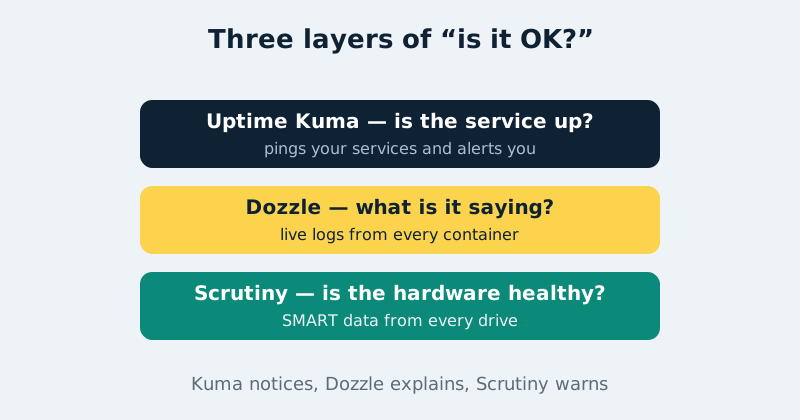
When Scrutiny says a drive is failing
Believe it, calmly. A Scrutiny failure means the drive either reported SMART’s own FAILED verdict or crossed attribute thresholds drawn from real-world failure statistics — either way it is an early warning, and early is the entire point. Work through it in this order. First, verify your backups of that drive’s data are current, before touching anything else. Second, read the attributes, not just the badge. A growing Reallocated Sector Count, Current Pending Sectors or Offline Uncorrectable errors mean the disk surface itself is going — plan a replacement. A high UDMA CRC Error Count, by contrast, usually indicts a cable or backplane connection rather than the drive: reseat or swap the cable and watch whether the count keeps climbing. Check temperature too — overheating is often just an airflow problem. Third, protect the data: if the drive is not covered by RAID or parity, copy the irreplaceable things off it now; if it is in an array, follow your NAS’s replacement procedure and rebuild one drive at a time — never pull a second drive mid-rebuild. Fourth, keep watching the replacement through its first weeks, because infant mortality is real. The one thing not to do is shrug because “the array still works”: redundancy is spent the moment a drive starts dying, and the warning is your chance to fix it while you still have margin.
How this fits with Uptime Kuma
If you already run Uptime Kuma, these two tools do not replace it — they complete it. Think in layers, each answering a different question. Uptime Kuma asks “is the service up?” Dozzle asks “the service is up but behaving strangely — what is it saying?” Scrutiny asks the question neither of the others can see: “is the hardware underneath everything quietly dying?” Kuma notices, Dozzle explains, Scrutiny warns. Together they are a complete-enough monitoring story for a home server — without a stack so elaborate that it needs monitoring itself.
Common mistakes and troubleshooting
Scrutiny’s dashboard is empty
No drives were passed through. Add a devices: entry for every drive, keep the /run/udev mount, and restart. One exception: drives in cheap USB enclosures often cannot pass SMART commands through the USB bridge — a hardware limit of the enclosure, not a Scrutiny bug.
“Port already in use” on the first start
Both tools default to 8080 in their own documentation, and so might something else on your NAS. The compose above publishes Scrutiny on 8081 for exactly this reason; if 8080 is taken too, move Dozzle’s published port instead — the left-hand number is yours to choose.
Dozzle opens but shows no containers
The socket mount does not match your Docker install. Standard Docker uses /var/run/docker.sock; rootless Docker keeps its socket under the user’s runtime directory. Match the mount to your setup and Dozzle will light up.
A drive shows FAILED in Scrutiny but “healthy” in the NAS software
Both are telling their version of the truth. NAS software usually surfaces only SMART’s own pass/fail verdict, while Scrutiny additionally fails drives on attribute thresholds that predict trouble earlier. Treat Scrutiny’s stricter verdict as the planning signal and follow the playbook above.
You never hear about warnings until something breaks
Notifications were never configured, or the dashboard is only opened during a crisis. Add the notification URL, send a test, and keep the weekly glance — Scrutiny’s value is measured in warnings received early, not dashboards admired late.
Official documentation and references
- Dozzle documentation — what Dozzle is and how it streams container logs
- Dozzle on GitHub — source code and configuration options
- Scrutiny on GitHub — S.M.A.R.T. monitoring setup and configuration
- Scrutiny documentation — manual installation guide
Frequently asked questions
Is Dozzle safe to run, given it mounts the Docker socket?
It is a standard, widely used tool, and the honest answer is: safe under one rule. The Docker socket is powerful, so Dozzle belongs on your LAN, behind a VPN, or behind an authenticated proxy — never forwarded to the open internet. Kept there, it is no riskier than the SSH access you would otherwise use for the same logs.
Does Scrutiny work with SSDs and NVMe drives?
Yes. It reads NVMe SMART logs and SATA SSD attributes just as it does spinning disks — pass the device through like any other drive (/dev/nvme0n1 and friends). Only USB-attached drives are hit-and-miss, depending on whether the enclosure passes SMART commands through.
Do I still need Uptime Kuma if I install these?
Yes — they answer different questions, as the layers section above explains. Kuma wakes you up when a service dies at 3 a.m.; Dozzle and Scrutiny are how you understand it over breakfast, and how you hear about a dying disk weeks early.