

A homepage for your homelab: dashboards for self-hosted services
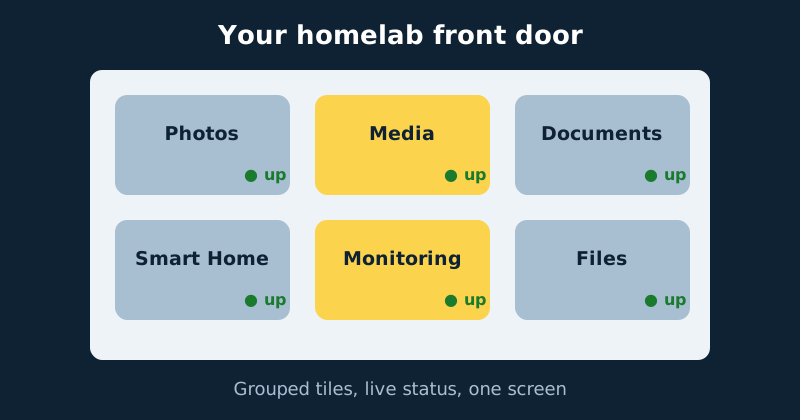
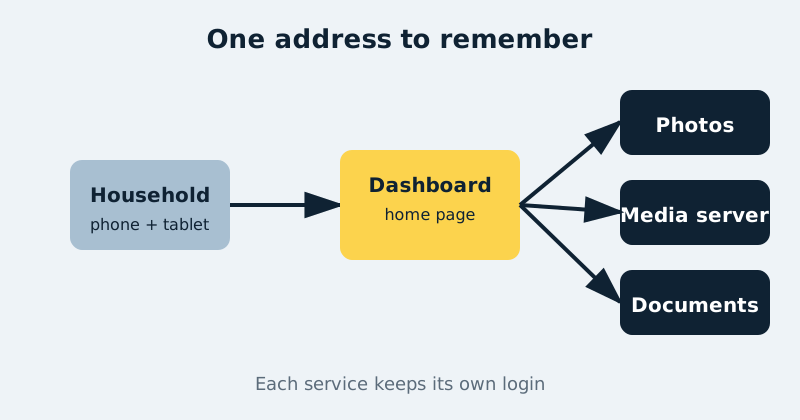
Five self-hosted services means five addresses and five port numbers nobody remembers. A homelab dashboard gives your whole setup one front door: one tidy page of tiles, live status and useful widgets that everyone in the house can actually use.
Published Nov 17, 2026 · Last updated Nov 18, 2026
This is the quality-of-life layer of self-hosting. The services themselves — photos, media, documents, monitoring — do the work, but the dashboard is what turns a collection of containers into something that feels like a system. It is also the page other people in the household will judge everything by: if the dashboard is clear and the tiles work, the homelab feels reliable; if it is a browser-history hunt for 192.168-something:8096, it feels broken even when it is not. Two mature, free, open-source options dominate: Homarr, the full-featured dashboard, and Heimdall, the simple application launcher. This guide compares them honestly, then sets up the pattern that works for either.
Homarr vs Heimdall: which fits you?
Heimdall is a launcher, and proudly so. You add an application tile — name, icon, address — and clicking it opens the service. Many popular services have “enhanced” tiles that can show a small amount of live information through the service’s API. Setup takes minutes, there is almost nothing to configure, and it runs happily on very small hardware. If your honest requirement is “one page of bookmarks with nice icons”, Heimdall does exactly that and stays out of the way.
Homarr is a dashboard in the fuller sense. Alongside app tiles it offers boards you design yourself, widgets for weather, calendars, downloads and media queues, live status indicators, a built-in search bar, user accounts with permissions, and integrations with dozens of common self-hosted services so tiles can show real data — how many streams are playing, whether services are up, what is downloading. That power costs a little more setup and a little more resource. For a household hub page — especially on a kitchen tablet or a TV — Homarr’s widgets earn their keep. For a personal jump page, Heimdall’s simplicity may genuinely be better. Neither choice is permanent, but be clear about what switching involves: the two apps do not share a compatible configuration format, so there is no export from one that imports into the other. What carries over is the underlying information — your service names, icons, addresses and groupings — which you recreate by hand in the new app. That is an afternoon’s tidying, not a rebuild, but it is manual tidying.
What you need
- Docker and Docker Compose on your NAS or server. Both projects are a single container with one small data volume — the lightest services in this whole series.
- A list of your services with names, internal addresses and ports, and which ones other household members use. The dashboard can only be as tidy as this list.
- Friendly names for addresses. A dashboard helps, but pairing it with local DNS names (for example through your router or an ad-blocking DNS service) means tiles point at
photos.home-style addresses instead of raw IPs that change when the router reassigns them. Give the NAS a fixed IP or a DHCP reservation either way. - API keys only where you want live data. Widgets and enhanced tiles read services through their APIs. Create separate, limited API keys for the dashboard rather than reusing your admin password anywhere.
Step-by-step setup (Homarr pattern, Heimdall notes included)
- Write the compose file for your chosen dashboard (Homarr example below), start it with
docker compose up -d, and open its web interface — Homarr on port 7575 by default. Heimdall’s container serves HTTP and HTTPS on its own mapped ports, commonly published as 8080 and 8443 in examples. - Create the administrator account when prompted, with a strong unique password. In Homarr, this account controls who can edit boards and which users see which board — set it up before adding anything sensitive.
- Add services in groups, not alphabetically. Create sections that match how people think: Media, Photos & Files, Documents, Smart Home, System. Add one tile per service with its real icon (both projects include large icon libraries, and Homarr can fetch icons automatically) — recognisable icons matter more than clever names for household usability.
- Use the address people should actually open. If a service is normally reached through a reverse-proxy name, put that name on the tile, not the raw container port. The tile is a promise: clicking it should land on a working login page from any device in the house.
- Turn on status indicators. In Homarr, enable the status check on each app tile so a green or red dot shows whether the service responds. In Heimdall, enhanced apps poll their service’s API. Either way, the dashboard becomes the household’s first diagnostic: red dot means the service, not the Wi-Fi.
- Add integrations and widgets sparingly. Connect the services you genuinely glance at — media server activity, download queues, your monitoring status, weather, a family calendar. Give each integration its own API key from that service. Stop after one screenful: a dashboard you must scroll and decode has failed at its one job.
- Add the search bar if your dashboard supports it, pointed at your search engine of choice. On a shared tablet this turns the dashboard into a genuine browser start page, which is how it earns a permanent place in the household’s habits.
- Create a second, simpler board or view for guests and family if your tool supports multiple boards or users: only the friendly services (media, photos), none of the admin panels, router pages or monitoring tools. Homarr’s user and board permissions exist precisely for this split.
- Set the dashboard as the start page on the kitchen tablet, the TV browser and your own machines, and add a DNS name for it — something like
homeorstart— so “just open the home page” becomes the answer to every “how do I get to the photos?” question. - Back up the data volume. Your boards, tiles, users and integration settings live in that one small folder or volume. It joins the normal container backup routine; rebuilding tiles by hand once is charming, twice is not.
A concrete Docker Compose example (Homarr)
services:
  homarr:
    image: ghcr.io/homarr-labs/homarr:latest
    container_name: homarr
    ports:
      - "7575:7575"
    volumes:
      - ./homarr/appdata:/appdata
      # Optional, for Docker integration widgets only:
      # - /var/run/docker.sock:/var/run/docker.sock
    environment:
      SECRET_ENCRYPTION_KEY: "replace-with-64-hex-characters"
    restart: unless-stopped
Generate the encryption key with a command such as openssl rand -hex 32 and keep it with your backup of the appdata folder — Homarr encrypts stored integration secrets with it, so losing the key means re-entering every API credential after a restore. The Docker socket line stays commented out unless you use the Docker widgets, for the same reason as in the monitoring guide: the socket is effectively root control of the host’s Docker, and a pretty widget is not worth granting it casually. And if all you want from Homarr is a homepage of links, you do not need the socket mount at all — leave it commented out and let the dashboard be a launcher; do not grant Docker control just to make the page look more informative.
Design rules that keep a dashboard useful
Three rules separate dashboards that last from dashboards abandoned by spring. First, one screen: if it does not fit without scrolling on the device people use most, remove tiles — admin tools you open monthly belong in a second board, not on the front page. Second, every tile must work from every device: test on a phone and the TV, not just the computer you built it on, because an address that only resolves on your desk is a broken promise. Third, the dashboard is a launcher, not a vault: it links to services; it must never become a place where passwords are written into tile descriptions or notes widgets. Logins stay in each service and in your password manager.
Common mistakes and troubleshooting
Tiles work on one device and fail on another
The tile address is the problem: a localhost address, a container name, or an IP that only one network segment can reach. Tiles must use the address that works house-wide — the NAS’s fixed IP or its DNS name — and the service itself must be published on that address, not bound only to the Docker host’s loopback.
Widgets show errors while the service itself is fine
Widgets talk to APIs, not web pages, so check the integration separately: the API key may be wrong, expired or created in the wrong service; the address in the integration may need the internal port rather than the proxy name (or the reverse); and some services require the key to belong to an admin account. Recreate a dedicated key for the dashboard and test the integration on its own before rebuilding the board.
Status dots are red but the service opens fine
Status checks often ping a slightly different path than the tile opens — an HTTPS check against an HTTP service, or a check that treats a login redirect as failure. Align the check’s address and protocol with the real one, and remember a redirect to a login page means “up” for any sane household definition.
The dashboard itself is down and nothing can be found
This is the argument for keeping one fallback: a simple bookmarks folder or a note — stored in your password manager — listing the direct addresses of your three most important services. The dashboard is a convenience layer; the services underneath must remain reachable without it, and a container restart should be your first move when the front door itself will not open.
Official documentation and references
- Homarr documentation — getting started with Homarr
- Homarr — the project's official site
- Heimdall — the project's official site
- Homepage documentation — the other dashboard this guide compares
Frequently asked questions
Homarr or Heimdall — which should a beginner pick?
Pick Heimdall if you want a tidy launcher running today with almost no decisions, and Homarr if you know you want widgets, live status and different boards for different people. Beginners who enjoy tinkering usually outgrow a plain launcher within months; beginners who want the homelab to disappear into the background usually do not.
Should the dashboard be reachable from outside the home?
Only through your normal protected route — a VPN-style connection or an authenticated reverse proxy — and only if you actually use it away from home. The dashboard is a map of everything you run; there is no reason to hand that map to the internet when a VPN gives you the same page safely.
Can the dashboard replace individual service logins?
No, and it should not try. Each service keeps its own accounts and passwords; the dashboard simply gets you to the right door. Some setups add a single sign-on layer later, but that is an advanced project with real lockout risks — separate logins stored in a password manager remain the sensible default for a home.