

Fixing a Flaky Zigbee Network: Channels, Interference and Placement
A flaky Zigbee network has a signature: a sensor drops off for a day and returns, a bulb answers three seconds late, one room is cursed while the rest of the house is perfect. Random fixes — re-pairing, restarting, swapping batteries — make it feel haunted. It is not haunted. Zigbee shares the crowded 2.4 GHz band with Wi-Fi, and almost every flaky network is a channel conflict, a badly placed coordinator, or a mesh with too few mains-powered routers. This guide fixes them in that order.
Published Nov 17, 2026 · Last updated Nov 18, 2026
Work through the steps in sequence and change one thing at a time. Zigbee meshes also need patience: after a channel or placement change, the network re-organises itself over hours, not seconds, and judging a fix after five minutes leads people to undo changes that were working.
What you need
- Access to your Zigbee integration — ZHA or Zigbee2MQTT in Home Assistant, so you can see the network map, channel and per-device link quality.
- Access to your Wi-Fi settings — you need to see, and ideally fix, which 2.4 GHz channels your access points use.
- A USB extension cable — a metre or two of distance between the coordinator and the computer or NAS hosting it is the cheapest reliability upgrade in this entire guide.
- One or two mains-powered Zigbee devices — smart plugs are ideal — to act as routers if your mesh turns out to be thin.
Step-by-step: stabilise the network
- Write down your current state before touching anything. Note your Zigbee channel, your Wi-Fi 2.4 GHz channels, the coordinator model and firmware, and which five devices misbehave most. Flaky networks invite shotgun changes; a written baseline lets you tell whether a change helped, hurt, or did nothing — and lets you undo it precisely.
- Move the coordinator away from the host machine first. USB 3 ports, SSDs and unshielded enclosures radiate noise exactly in Zigbee's band, and a coordinator plugged directly into a busy NAS or computer sits inside that noise. Put it on a USB extension cable, a metre or more away, ideally high and central rather than in a corner cabinet. This single change fixes a surprising share of “random” dropouts, and it costs almost nothing.
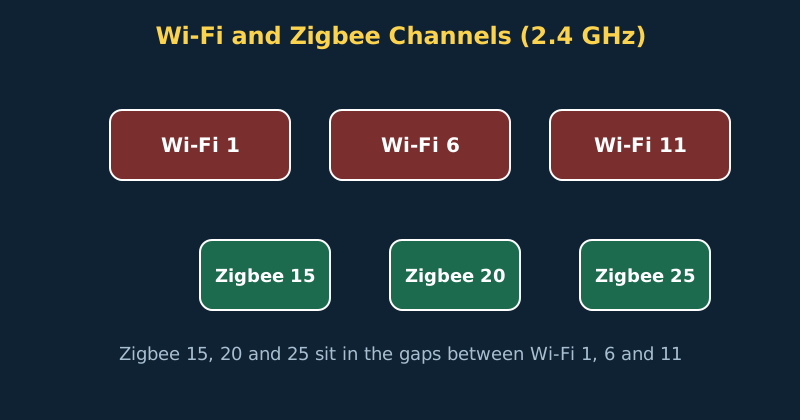
- Fix your Wi-Fi channels, then choose Zigbee's. Set your 2.4 GHz Wi-Fi to 20 MHz channel width and pin access points to channels 1, 6 or 11 — the only three that do not overlap each other. (That 1/6/11 plan is US 2.4 GHz practice; permitted Wi-Fi channels vary by country — some regions allow channels up to 13, others restrict parts of the band — so adapt the plan to your local rules.) Then pick a Zigbee channel that sits in a gap relative to your strongest Wi-Fi: Zigbee 15, 20 or 25 are the usual safe choices, with 25 furthest from most Wi-Fi but unsupported or power-limited on some older devices. Never leave either system on “auto” if they fight — auto means the conflict returns whenever a router reboots and re-picks.
- Change the Zigbee channel in your integration, then wait. In ZHA, the channel is set in the integration configuration; in Zigbee2MQTT, in its configuration file — see the example below. Most modern devices follow a channel change automatically over several hours; some battery devices need a button press or a re-pair to find the network again. Work through the stragglers the next day, starting with the ones physically furthest from the coordinator.
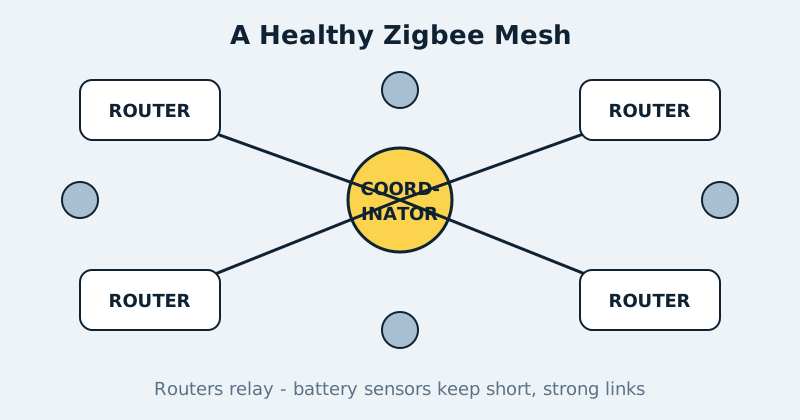
- Audit your mesh for router depth. Open the network map. Battery sensors and buttons are end devices — they cannot relay for anyone. Mains-powered bulbs, plugs and switches are routers that extend the mesh. Every end device should be within a comfortable hop of a router or the coordinator. A distant sensor talking directly to the coordinator across the whole house, past three walls, is your dropout waiting to happen — add a smart plug halfway and watch its link quality transform.
- Check link quality per problem device, not vibes. ZHA shows signal values and Zigbee2MQTT shows LQI per device. Numbers vary by vendor, but the pattern is universal: a device whose link quality swings wildly or sits at the bottom of your network's range is telling you it has a path problem, not a battery problem. Fix the path — placement or a router — before replacing the device.
- Hunt local interference near the worst devices. USB 3 hubs, poorly shielded LED drivers, microwave ovens, baby monitors and a neighbour's router on an overlapping channel can all punish one corner of a house. Correlate dropouts with times and activities for a few days. If the kitchen sensor dies whenever the microwave runs, you have found physics, not a defective sensor — reroute its mesh path away from the kitchen.
- Update coordinator firmware, and keep the integration current. Coordinator firmware updates have quietly fixed entire classes of routing and device-compatibility bugs over the years. Update carefully — read the release notes, take a Home Assistant backup first, and do it at a calm moment, not as a midnight experiment — then give the mesh a day to settle before judging.
Setting the channel in Zigbee2MQTT
# Zigbee2MQTT configuration.yaml (excerpt)
advanced:
  # Zigbee channel: 15, 20 or 25 usually avoid Wi-Fi 1/6/11.
  # Changing this re-pairs nothing, but some battery devices
  # need a button press to rejoin on the new channel.
  channel: 20
  # GENERATE tells Zigbee2MQTT to create a fresh random network
  # key on first start and store it. Never paste a placeholder
  # string here — a quoted "secret" is just a literal (weak) key.
  network_key: GENERATE
  pan_id: 6754

# Wi-Fi side, for reference (set on your access points):
#   2.4 GHz band: channels 1, 6 or 11 only
#   Channel width: 20 MHz (never 40 MHz in a Zigbee home)
In ZHA there is no file to edit — the channel is chosen when the network is formed and can be changed from the integration's configuration options. Either way, the planning is identical: map your Wi-Fi first, then place Zigbee in the quietest gap. Channel 20 in the example is the neutral default for a mixed network; run your own Wi-Fi layout through the Zigbee Channel Planner and substitute the channel it recommends — channel 25 is still a good pick when all your devices support it.
How many routers is enough?
There is no magic ratio, but a useful rule of thumb is at least one mains-powered router per room that contains battery devices, and no end device relying on a link that passes through more than one exterior wall or a floor slab. Dense networks of smart bulbs make excellent meshes while they have power — which is why a bulb on a switched circuit that keeps getting turned off at the wall can destabilise its neighbours. If a router keeps losing power, the mesh keeps re-routing around it, and “flaky” is the honest description of that behaviour.
Common mistakes and troubleshooting
- Wi-Fi set to 40 MHz width on 2.4 GHz. A 40 MHz Wi-Fi channel stomps on two Zigbee gaps at once. In a home with Zigbee, 2.4 GHz Wi-Fi should be 20 MHz — the speed difference is minor, the peace treaty is worth it.
- Coordinator plugged straight into a USB 3 port. Covered above because it is that common. Extension cable, distance, elevation — before any other spending.
- Judging a channel change after ten minutes. Battery devices check in on their own schedule. Give a channel or placement change a full day, then re-pair only the devices still missing.
- One brand of bulb keeps dropping. Some bulbs are weak routers and some dislike specific channels, particularly channel 25. If one model misbehaves on an otherwise healthy network, move that model to plugs or switches duty elsewhere and standardise the backbone on devices with a good routing reputation.
- Everything broke after adding a device. Occasionally a faulty or misbehaving device floods the network. Remove the newest device, watch stability for a day, and reintroduce it last — ideally after its own firmware update.
Official documentation and references
- Home Assistant — ZHA integration, including interference-avoidance guidance
- Zigbee2MQTT documentation — supported adapters and coordinators
- Zigbee2MQTT documentation — configuration and network guidance
- Zigbee2MQTT on GitHub — source code and release notes
FAQ
Which Zigbee channel is best?
The one furthest from your strongest Wi-Fi. With Wi-Fi pinned to 1, 6 and 11 at 20 MHz width, Zigbee channels 15, 20 and 25 sit in the gaps. Channel 25 is often quietest but check device support first — a few older devices cannot use it or transmit at reduced power there. Channel 20 is the safe middle choice for mixed networks.
Will changing the channel make me re-pair everything?
Usually not. Most mains-powered devices follow the new channel automatically within hours, and many battery devices follow when they next check in or when you press their button. Budget an evening, expect a handful of stubborn devices to need re-pairing, and take a backup first — but do not let the fear of it keep you on a channel that fights your Wi-Fi forever.
Does Zigbee2MQTT fix flakiness better than ZHA?
No — flakiness is a radio problem, and both integrations use the same radio and the same mesh. Zigbee2MQTT offers a more detailed map and per-device link data, which can make diagnosis easier, and supports some coordinators and devices differently. Switch for features or device support if you like, but fix channel, placement and routers first; those fixes work on either stack.
Related guides
- Home Assistant radios and protocols explained
- Home Assistant Backups: The 3-2-1 Strategy That Actually Restores
- ESPHome for Beginners: Your First Sensor
- Home Assistant hub
Gear for this build
Prices are editorial and change often; buttons show live prices. Some links may earn a commission at no cost to you — see the disclosure page.
Planning channels instead of guessing? The Zigbee channel planner shows your exact Wi-Fi overlap on a spectrum chart.