

Actionable Notifications: Home Assistant Alerts That Reach You and Let You Act
A notification that only tells you something happened is half a feature. An actionable notification lets you respond from the alert itself — close the garage, lock the door, silence the alarm, restart the routine — without opening an app and hunting for the right dashboard. This guide builds alerts that arrive reliably, respect your attention, and carry exactly the buttons the moment deserves.
Published Nov 17, 2026 · Last updated Nov 18, 2026
What you need
You need the official Home Assistant Companion app installed on your phone and signed in to your instance — its notify service is what this entire guide uses, on both Android and iPhone. You need at least one automation worth being interrupted for: a leak sensor, a door left open, a lock that failed to engage, a camera event from your recorder. And you need a way for the phone to reach Home Assistant reliably, whether that is your own remote access setup or simply your home network for local alerts, because an action button is a command travelling back to your house. Decide that path before you build twenty notifications on top of it. Finally, you need restraint: actionable notifications work because they are rare, specific and genuinely actionable. If everything is urgent, nothing is.
How actionable notifications work
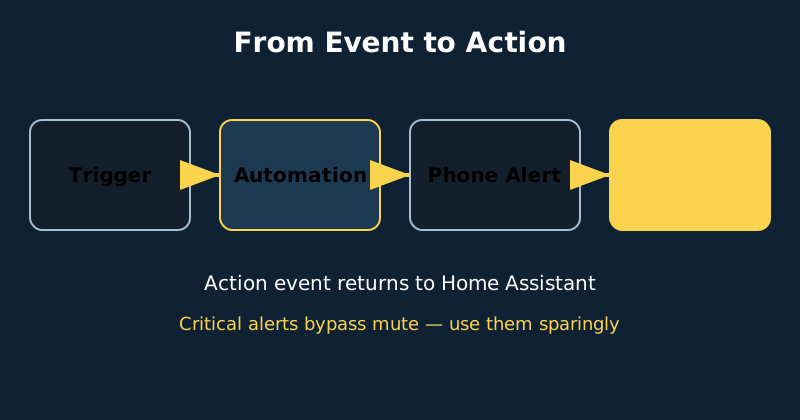
When an automation calls the Companion app's notify service, it can attach a list of actions, each with an identifier and a title. The phone displays them as buttons on the notification — by long-press on iPhone or in the expanded notification on Android. When you tap one, the app fires an event back to Home Assistant called mobile_app_notification_action, carrying the identifier you defined. A second automation listens for that event and does the thing: closes the cover, locks the lock, acknowledges the alert so it stops repeating. Two practical details matter. Action identifiers are just strings, so name them clearly and uniquely per automation, such as CLOSE_GARAGE. And an action can open a dashboard or a URL instead of firing an event, which is perfect for 'view camera' buttons that take you straight to the relevant live feed.
Build your first actionable alert
- Pick one high-value event. Start with a single scenario where a one-tap response saves real effort — a garage door left open is the classic, a water leak with a valve shutoff is the highest-stakes version.
- Send a plain notification first. Write the automation's trigger and conditions, and get a simple message arriving reliably. Confirm it appears when the event happens and, just as importantly, does not appear when conditions say it should not.
- Add the actions. Extend the notify call with an actions list like the example below: one action that fixes the problem, and one that consciously dismisses it, so the system learns nothing from silence but you are never forced to act.
- Write the response automation. Create an automation triggered by the mobile_app_notification_action event, filtered to your action identifier, that performs the fix and sends a short confirmation — 'Garage closing' beats silence, because you tapped from somewhere else and cannot see the door.
- Test both buttons deliberately. Trigger the event, tap each action in turn, and verify the confirmation and the physical result. Test again with the phone locked; that is how real alerts arrive.
- Add escalation for the critical few. For leak, smoke or intrusion alerts, repeat the notification every few minutes until acknowledged, and consider a critical alert — which on iPhone can bypass mute and Do Not Disturb, and on Android uses the alarm stream — reserved strictly for events you would want to wake you.
# 1) The alert, with two action buttons
automation:
  - alias: "Leak under kitchen sink - alert"
    trigger:
      - platform: state
        entity_id: binary_sensor.kitchen_sink_leak
        to: "on"
    action:
      - service: notify.mobile_app_phone
        data:
          title: "Water leak detected"
          message: "Leak sensor under the kitchen sink is wet."
          data:
            actions:
              - action: "SHUTOFF_WATER"
                title: "Shut off water"
              - action: "LEAK_SEEN"
                title: "I am home - handling it"
            # iOS only: this critical-sound block is iPhone syntax.
            # Android configures urgent alerts via the notification
            # channel and alarm stream instead — see the note below.
            push:
              sound:
                name: default
                critical: 1
                volume: 1.0

# 2) The response, in a second automation
  - alias: "Notification action - shut off water"
    trigger:
      - platform: event
        event_type: mobile_app_notification_action
        event_data:
          action: "SHUTOFF_WATER"
    action:
      - service: valve.close_valve
        target:
          entity_id: valve.main_water_shutoff
      - service: notify.mobile_app_phone
        data:
          message: "Main water valve is closing."

# 3) The acknowledgement, so the second button is not a dead end
  - alias: "Notification action - leak seen, handling it"
    trigger:
      - platform: event
        event_type: mobile_app_notification_action
        event_data:
          action: "LEAK_SEEN"
    action:
      # Flag it handled: the leak alert's repeat loop checks this
      # boolean and stops re-sending while it is on.
      - service: input_boolean.turn_on
        target:
          entity_id: input_boolean.leak_acknowledged
      - service: notify.mobile_app_phone
        data:
          message: "Marked as handled. Leak alerts paused for 2 hours."
      - delay: "02:00:00"
      - service: input_boolean.turn_off
        target:
          entity_id: input_boolean.leak_acknowledged
    mode: single
Notice the design pattern: the alert automation knows how to detect and ask; the response automation knows how to act. Every button needs its listener — the third automation above exists because the “I am home” button would otherwise be a dead end: it acknowledges the alert, sets a helper that the alert's repeat logic checks so the repeats stop, and clears the helper again after two hours in case the leak is still wet. And one platform note on the example: the push sound block with critical: 1 is iOS syntax. Android handles critical and urgent alerts differently — through the notification channel's importance setting and the alarm stream — so Android households should set the channel up for urgency and drop the iOS block. Keeping them separate means one response automation can serve several alerts that share an action, and your action identifiers stay consistent across the house. It also keeps each automation short enough to debug at midnight, which is when these systems always choose to be debugged.
Design rules that keep alerts welcome
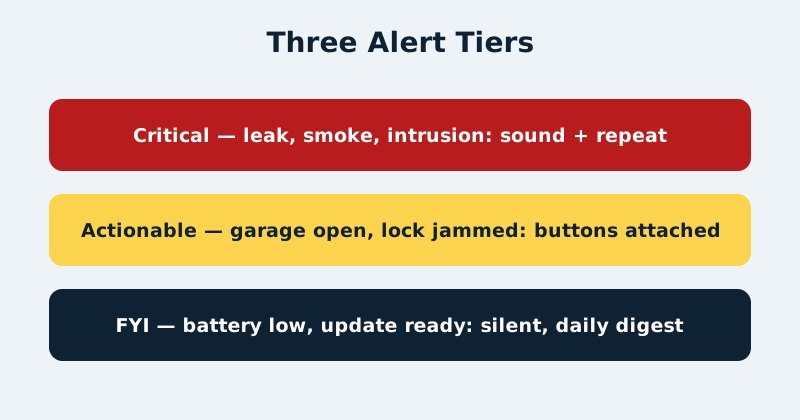
Write messages a tired person understands in two seconds: what happened, where, and since when — 'Garage door open for 15 minutes' outperforms 'Garage alert'. Attach a snapshot when a camera is involved; one image prevents the open-the-app-to-check trip that trains people to ignore you. Group related notifications using the Companion app's group and tag features, so a flapping sensor replaces its own previous alert instead of stacking forty copies, and so one clear removes the stale ones. Use notification channels on Android and interruption levels thoughtfully: a dedicated channel per tier lets you give critical alerts a real sound while FYI messages — battery low, update available, filter due — arrive silently and can be batched into a single morning digest automation instead of dribbling through the day. Finally, audit monthly: any alert you routinely swipe away without acting gets fixed, downgraded or deleted. Alert fatigue is a system failure, not a user failure.
Common mistakes and troubleshooting
The most common failure is a response automation that never fires because the action identifier in the event filter does not exactly match the one in the notify call — they are case-sensitive strings, so copy, do not retype. If buttons do not appear at all, expand the notification fully and check you are using the Companion app's notify service rather than a generic one, and that the actions are nested under the data key as documented. If actions work at home but not away, your phone cannot reach Home Assistant remotely — fix remote access, then retest from mobile data with Wi-Fi off. If critical alerts do not break through, check the phone's per-app settings: iPhone critical alerts require the permission granted to the Companion app, and Android behaviour depends on the channel's importance and the alarm-stream settings. If you receive duplicates, look for the automation triggering on state changes you did not intend, such as a sensor briefly going unavailable and back. Add conditions, use the for duration on triggers, and prefer state triggers on the specific value you care about.
Official documentation and references
- Home Assistant Companion docs — actionable notifications, actions and replies
- Home Assistant Companion docs — notification basics, tags and grouping
- Home Assistant — Mobile App integration documentation
- Home Assistant documentation — automation actions reference
FAQ
How many action buttons can a notification have?
Keep it to two or three. The platforms can show more, but a notification is a split-second decision, not a control panel: one primary fix, one acknowledge or snooze, and occasionally one 'view' action that opens the relevant dashboard or camera.
Can actionable notifications work without internet?
On your home network, yes — the Companion app talks to Home Assistant locally. Away from home they need a working remote path to your instance, such as your own VPN or tunnel setup. The button tap is a real command travelling to your house, not a local phone trick.
What makes an alert 'critical', and should I use it?
A critical alert can sound through mute and Do Not Disturb — on iPhone with the critical flag and granted permission, on Android by using the alarm stream. Reserve it for water leaks, smoke and genuine security events. The first time a critical alert wakes you for a low battery, you will start ignoring the ones that matter.